

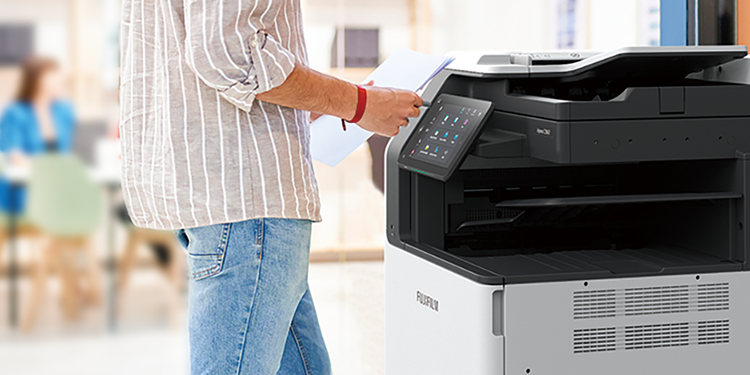


FUJIFILM Print Support App is a Windows application.
The Windows built-in driver (Microsoft IPP Class Driver) provides only basic print settings. By using FUJIFILM Print Support App, users can use a range of printing features available on multifunction printers and printers.
The application supports Windows Ready Print, Microsoft's next-generation driverless printing architecture for enhanced security, providing a secure, reliable, and future-ready printing environment.
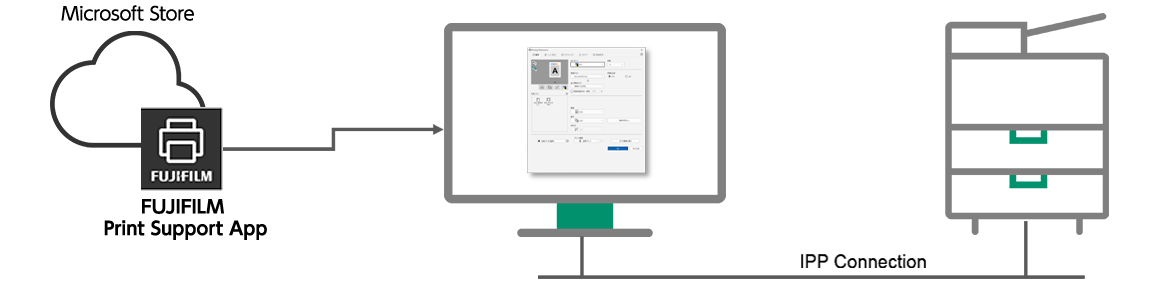
The user interface is similar to the FUJIFILM printer driver, allowing users familiar with the PCL driver to configure print settings easily.
FUJIFILM Print Support App is also installed when Microsoft Universal Print is used.
- Go to [Settings] > [Bluetooth & devices] > [Printers & scanners], and add the printer or multifunction printer you want to use.
- The Windows built-in driver is installed, and a print queue is created for the device.
- FUJIFILM Print Support App is automatically downloaded and installed.
* To add a standard printer:
- If the printer or multifunction printer is not detected, click [Add a new device manually] under [The printer that I want isn’t listed].
- Select [Add a printer using an IP address or hostname], and then click [Next].
- Select [IPP Device] under [Device type].
- Enter the host name or IP address of the printer you want to add, and then click [Next].
- Click[Finish].