


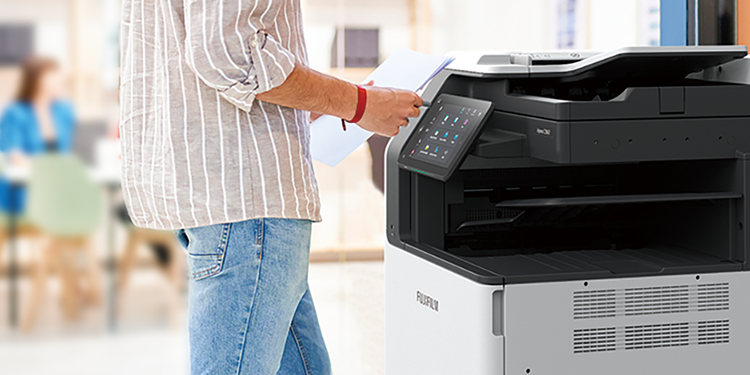
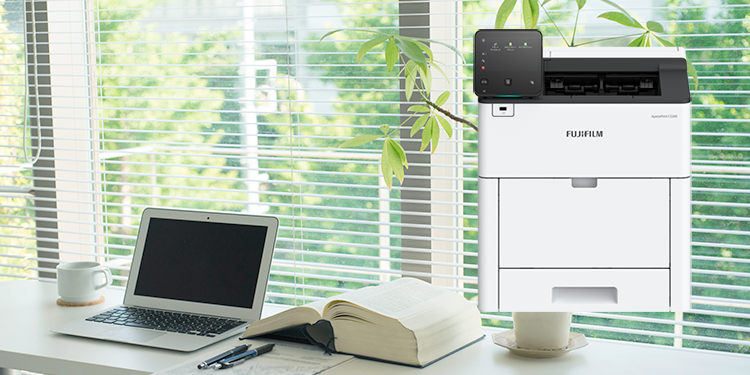

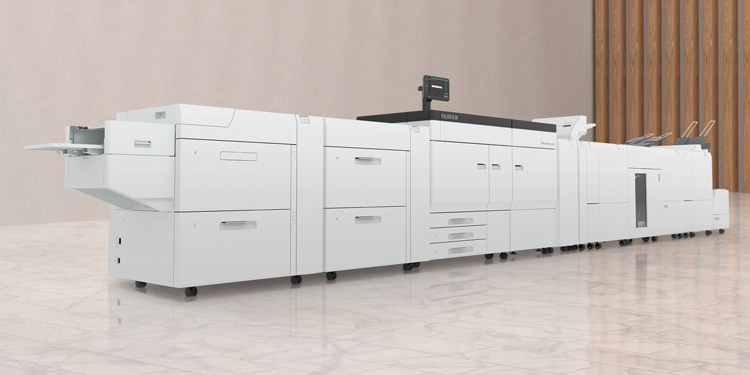






DocuWorks, which has been continuously upgraded to meet the evolving needs of the times and users, surpassed a cumulative total of 8 million licences sold in Japan in 2024.
DocuWorks 10 bundles all the optional products sold separately that many users have purchased in the past into an all-in-one model significantly cutting total installation cost and simplifying initial setup.
| Product | Package/Subscription |
|---|---|
| DocuWorks |  |
| DocuWorks Tray | |
| DocuWorks Property Entry | |
| DocuWorks Cloud Connect | *1 |
- *1 The package version is available free of charge for the first year. From the second year onwards, a separate contract is required. Availability of subscription-based DocuWorks depends on the country or region.
- Note: Availability of subscription-based DocuWorks depends on the country or region.
DocuWorks Documents, a clutter-free and easy-to-use electronic paper and DocuWorks Desk, an electronic desk that
recreates your physical work desk in a digital form on a PC. Your daily tasks always start here. Find the document you need
swiftly and easily with instantly-recognizable cover pages.
① Folder area
② Task Space
③ Keyword search
④ Workspace
⑤ Task Toolbar
⑥ Thumbnail view
⑥-1 Large-sized documents (A2)
⑥-2 Binder
⑥-3 Container "Clear folder"
⑥-4 Container "Envelope"
⑥-5 Protected document
⑥-6 Scan document
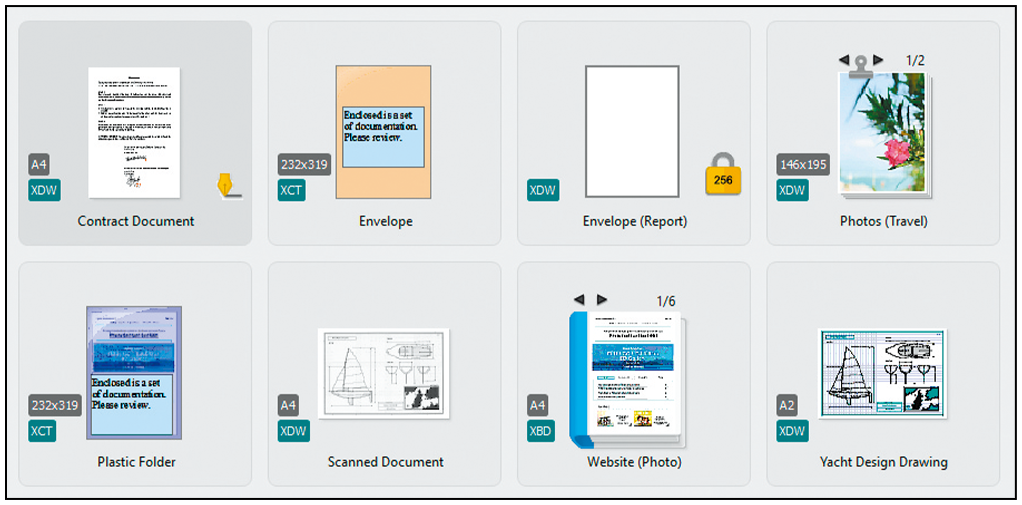
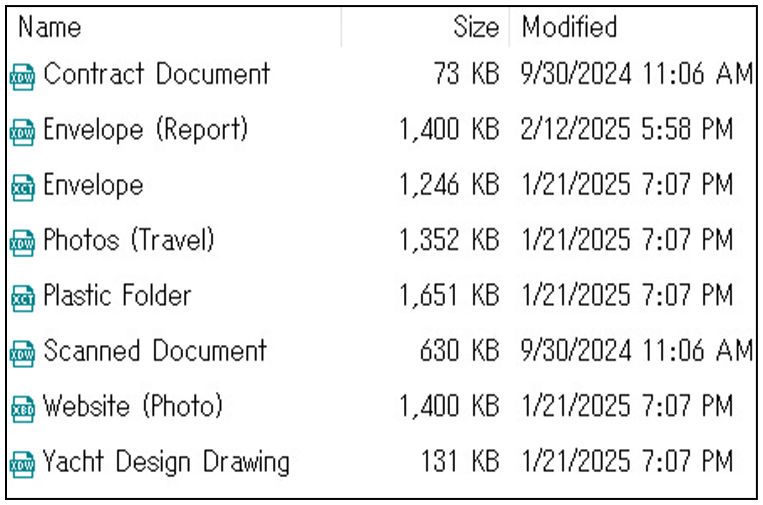
Automatically aligns files to ensure organisation at all times.
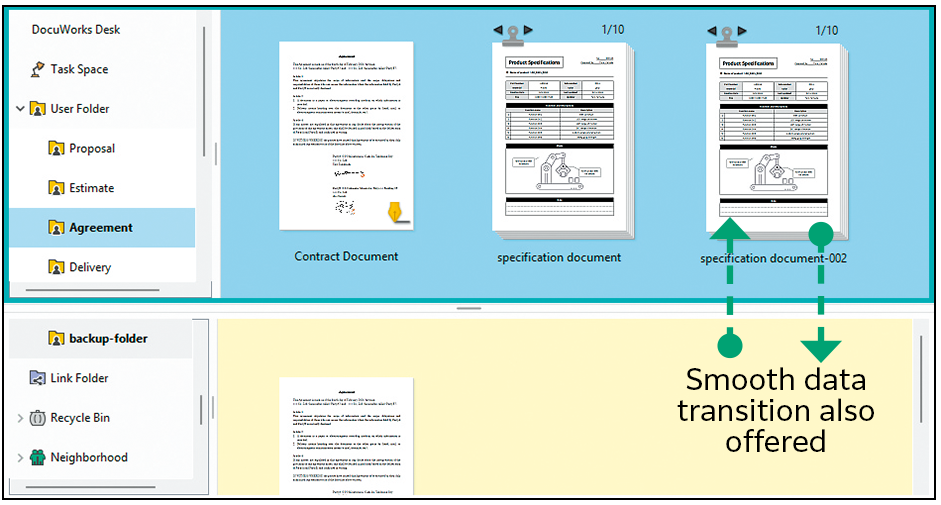
The screen can be divided into a top and bottom view. You can easily move and save documents to streamline tasks.

DocuWorks documents can be arranged and displayed on DocuWorks Desk, just like how paper documents are arranged on
your real desk. The documents can be edited in units of files, and you can stack and unstack the files.
Microsoft Office documents such as Excel, Word, PowerPoint, and scanned documents can be easily convertedto DocuWorks documents or PDF using drag-and-drop.
With "Clear Folder" and "Envelope", Microsoft Office documents as well as DocuWorks documents and PDFs can be managed together and operated just like folders. Also, "Binder" can be used to integrate multiple DocuWorks documents into one while keeping them as individual documents.
Documents imported from scans or created in different applications can be stacked and managed as a single DocuWorks document or PDF.
Convert documents to PDF with consideration to security, such as passwords and watermarks.
Thumbnails of DocuWorks documents and PDFs can promptly be temporarily enlarged. The thickness of the document is also displayed, allowing you to view multiple documents as if you were turning pages on your desk. Moreover, DocuWorks documents can be easily moved to the location of pasted sticky notes*2 just as if they were paper on a desk.
- *2 Sticky notes are for DocuWorks documents only

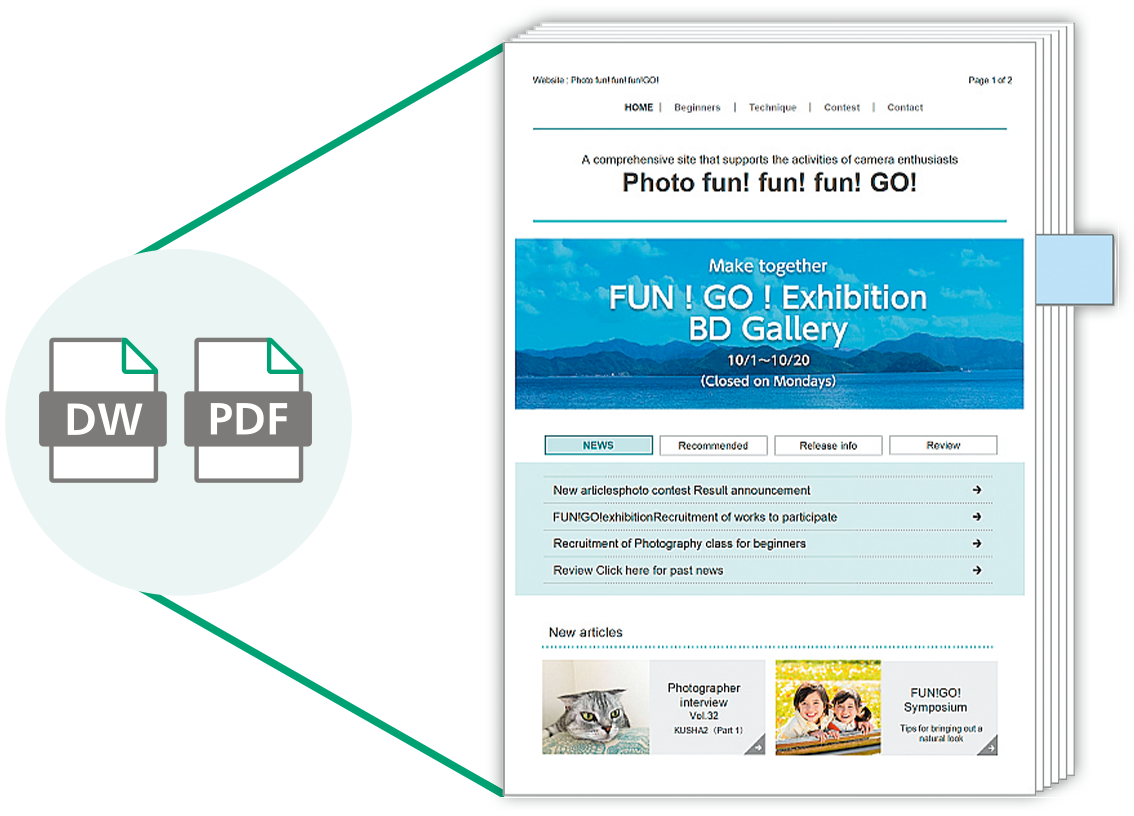
Temporarily enlarge DocuWorks documents and PDFs without opening files
When importing and converting documents to DocuWorks Desk, the original data (document) can be attached. This allows for flexible usage, such as editing the original data and attaching related documents.
Link folders allow you to set up links to folders on your network. Shared documents can be searched, and documents can
be viewed and edited from DocuWorks Desk.
DocuWorks documents can be compared with each other, and PDF documents can also be compared to extract changes and differences. In addition to text information, images can also be compared, making it useful for reviewing drawings and other documents.
- Note: Since tilt correction and colour correction are not performed, this feature cannot be applied to scanned documents.
DocuWorks Viewer is an electronic stationery tool that allows for smooth viewing and easy editing of documents arranged
on the electronic desk, DocuWorks Desk. As an essential work tool, it provides powerful support for daily tasks.
① [Standard] Toolbar
② [Find] Toolbar
③ [Zoom] Toolbar
④ [Page Up/Down] Toolbar
⑤ Annotation toolbar
⑥ InfoView
⑦ [Property] Toolbar
⑧ Display format switch button
⑨ Status bar
⑩ Pencil Case
⑪ Sticky note
DocuWorks Viewer enables you to browse in the same way that you would view a paper document in your hands. You can
edit pages, temporarily enlarge listed pages, split pages, change page positions, and delete pages, all while handling
electronic paper just as if you were working on a desk.
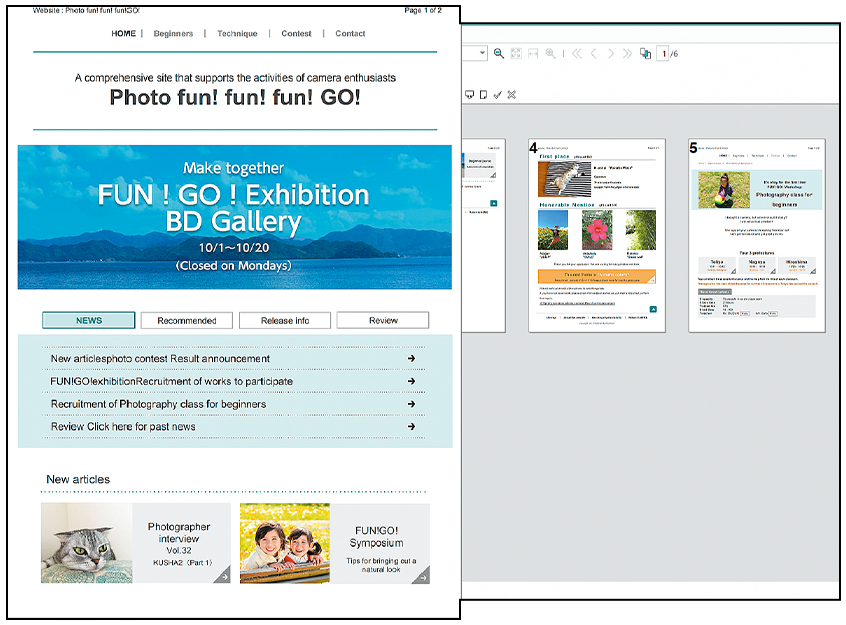
Temporary enlarge
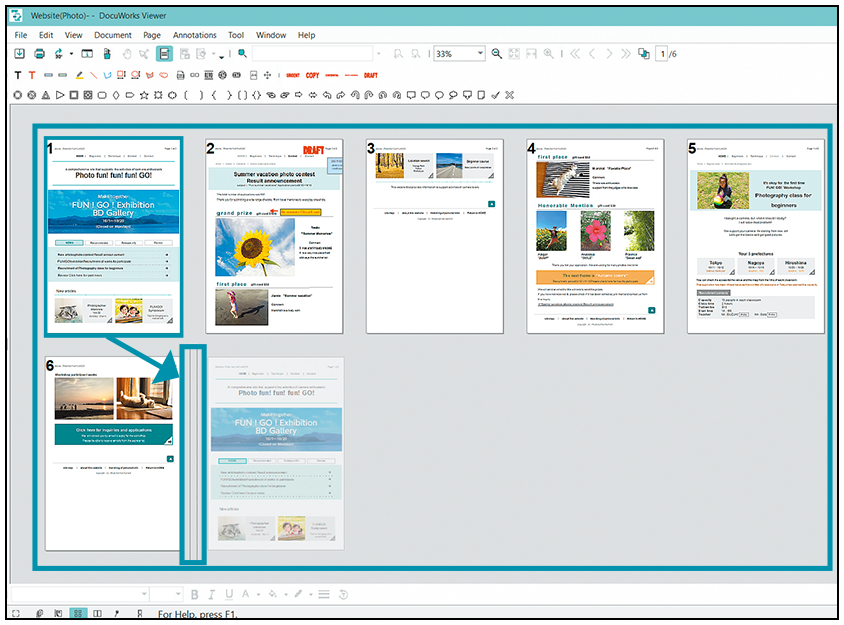
Move page
With screen synchronization, you can scroll two DocuWorks documents at the same time. The left and right documents can be scrolled in sync, making it easier to check corrections.
You can change the display format, including "Document", which allows you to flip through pages as if they were paper, "Page Sorter", which allows you to display documents side by side, and "Continuous Page", which allows you to move pages by scrolling with the mouse.
"Pencil Case" enables you to quickly recall frequently or recently used functions. Popups are displayed near your mouse so that you do not have to move your mouse all the way to the toolbar when editing, allowing you to concentrate on the task at hand.
DocuWorks documents can be viewed and edited on mobile devices too. You can immediately check the content you have set, such as sticky notes, approval stamps, and comments.
Sticky notes can be sorted easily and re-sorted instantly when the document is changed.
Standard stamps such as date stamps, "Important", "Urgent", "Approved", and "Confidential" are available by default. You can also register your own custom stamps. Additionally, if you register a stamp in the Task Toolbar with a predetermined placement, you can easily apply it with a single click on the icon in the Task Toolbar.
DocuWorks Electronic Signature*3 and Digital Certificate*4 allow you to add a digital signature to DocuWorks documents. It is possible to check the name and date, and whether the signature is original, or if it had been revised or edited after the document is signed once.
- *3 The DocuWorks Electronic Signature function does not use digital certificates issued by a certification authority.
- *4 If using signatures based on Digital Certificate, it is necessary to obtain an individual user certificate from a certification authority or an intermediate certificate and a root certificate from a certification authority.
Existing DocuWorks files can be converted to highly compressed DocuWorks (MRC compression). Data size can be reduced while maintaining text and image quality.
Enlarges a DocuWorks document page by page to the entire screen. Useful when you want to make a presentation using DocuWorks documents.
You can copy and use a certain part of a DocuWorks document. This is useful for copying a portion of a drawing, map, or manual and pasting it into another document.
Your everyday work made simple. "Task Toolbar" can be used to standardise the tasks that you perform regularly, making
work more efficient. "DocuWorks Tray" allows documents to be easily transferred and information to be shared.
Streamline standard work by registering frequently-used functions and task procedures to the Task Toolbar. The customised
Task Toolbar can be placed at the bottom of the DocuWorks Desk screen to share with all team members.
Tab colour and size can be customised for each task or operation, making it easy and straightforward to use.
Register icons in accordance with the flow of work. Performing operations in the order of the icons in Task Toolbar
eliminates operational errors and is helpful in streamlining standard tasks.
- Note: Up to 30 tabs can be registered.
Since a mark is left on the icon of the job that was implemented last, it is possible to work concurrently on multiple tasks
and understand the progress you have made on each.
Settings information for Task Toolbar can be exported and imported. By sharing the settings for Task Toolbar with your
team, it is possible to carry out tasks with the same flow even if the person in charge of the task changes.
Customise Task Toolbar to suit your specific preferences by simply dragging & dropping icons for each individual task.
Operations that occur daily can be executed with a simple button operation, allowing you to work with greater efficiency.
For example, by setting up continuous execution for the following operations, multiple documents that match the conditions can be grouped together and the work completed in a batch.
- Select documents that have been updated within thetime period
- Add the date to the beginning of the file name
- Combine in a binder
Date stamps can be stamped at predetermined locations. This is useful in situations where approval stamps are required on standardised forms.
You can open and edit document templates created in Word/Excel, etc. to generate DocuWorks files. This is recommended when creating documents from standard templates.
Scanned documents that have been tilted can be easily corrected at the touch of a button.
OCR processing is performed and the read text can be output to Word/Excel/text documents, etc.
Faxed or scanned documents can be imported from the multifunction device to DocuWorks Desk via the tray. You can also
share documents with others simply by placing the document in the tray.
Transfer of paper documents using a tray was reproduced in a PC environment. Since newly-arrived documents are notified by an icon and popup screen, it's hard to be overlooked.
Fax documents received/paper documents scanned via a FUJIFILM Business Innovation multifunction device are
automatically forwarded to DocuWorks on your PC. By also using "DocuWorks Tray" that allows for transfer of documents
as though placing a paper document on a tray, it is possible to visually see that you have received a document.
You can send a fax directly from DocuWorks Desk. You no longer need to go to the fax machine or print out a document to
send it, which also contributes to saving paper.
By using "Clear Folder" and "Envelope", you can store and manage documents in various formats, including Word and Excel files. When collaborating with multiple people, documents can be placed in a "Container" and shared in a tray, allowing editing to be resumed seamlessly. The "Container" can be expanded in DocuWorks Desk like a user folder, enabling efficient work while using the Task Toolbar.
By assigning and managing attributes to the various documents created every day, searchability is improved and documents can be used more effectively. The user-friendly user interface screen makes it easy for even first-time users to register attributes.
Easily register attributes while viewing a document. Work is streamlined as you can search documents based on the
registered attribute information. It is also possible to register and search for attributes by operating the buttons on the
Task Toolbar.
Attribute values such as customer name and delivery date can be registered in DocuWorks documents and PDFs. You can
also specify the necessary area with the mouse and use the result of OCR processing as the attribute value, reducing the
time and effort involved in attribute input.
Sorting rules can be set up to sort by attributes at the time of registration. Two destinations can be set from folders, trays,
etc.
Files can be filtered by searching based on attribute values. It is also possible to select which attributes to output and
output them to a CSV file. The CSV file can be used as the source data for the management ledger.
Use Attribute View to efficiently display only those documents that meet your criteria.
Use your everyday DocuWorks environment on a mobile device or different PC*5 . Start your work right away using DocuWorks Desk, even outside of the office or at home.
- *5 A separate Working Folder contract is required.
Applications that enable you to view and edit DocuWorks documents on iOS or Android™ mobile devices are offered for free*6 . The "Task Space" and "Pencil Case" that you use at your office can be imported onto a mobile device*7
, ensuring that you can continue working outside of the office or while you are travelling.
- *6 DocuWorks Viewer Light (iOS), DocuWorks Viewer Light (Android)
- *7 A separate Working Folder contract is required.
Link with FUJIFILM Business Innovation cloud service "Working Folder". Easily drag & drop from DocuWorks Desk to upload and download documents.
- *8 A monthly subscription-based cloud service offered by FUJIFILM Business Innovation.
DocuWorks Cloud Connect*9 also links with multiple cloud services such as Box Business and OneDrive for business. Upload/download documents from DocuWorks Desk by drag and drop or browse documents in the cloud.
- *9 DocuWorks Cloud Connect is available free of charge for the first year. From the second year onwards, a separate contract is required.
- Please check the official website for the latest information on supported cloud services.
Now you can edit DocuWorks documents with ease and rotate, stack, unstack, etc. at the touch of a button, even from
a mobile device. This allows handling of electronic paper with greater freedom, just as if you were working at a desk.
- Note: Only supported on iPad. Requires purchase of DocuWorks 10 package version or DocuWorks subscription contract.
By linking with FUJIFILM Business Innovation' add-on applications, routine scanning work and digitization/sorting work of
received fax documents are automated. This makes operations more efficient.
By simply selecting a task name or document type, tasks such as adding a file name/attributes, file conversion and image processing are carried out in accordance with set rules, and documents are automatically sorted depending on their type and date. Routine scans are streamlined.
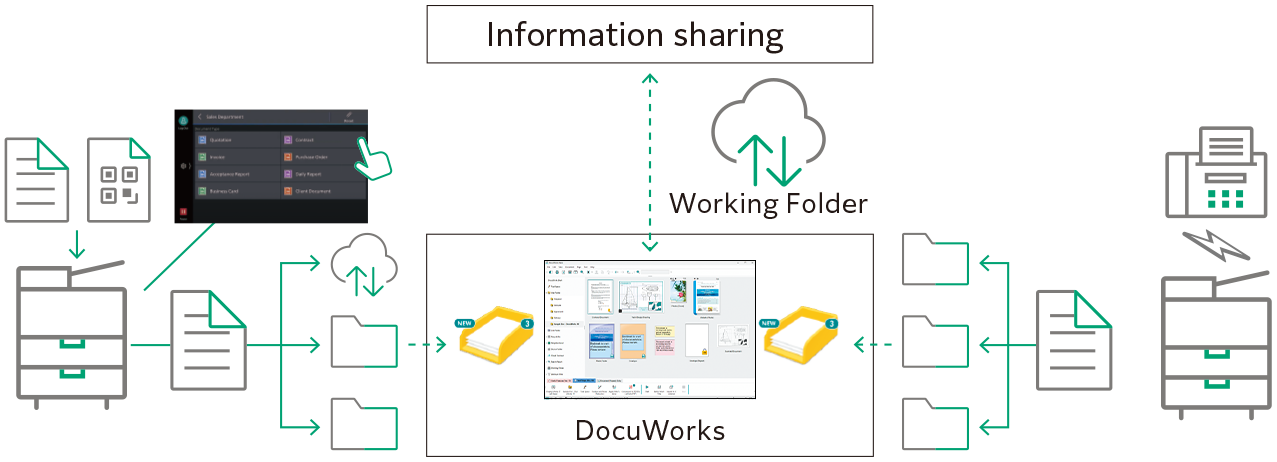
Fax documents received on a multifunction device are sorted/assigned attributes based on the fax number and date received, and are then digitized and automatically sorted. Paperless fax operations that meet your needs, such as the ability to support a schedule function, are also possible.
With Working Folder, you can share documents while on the go.