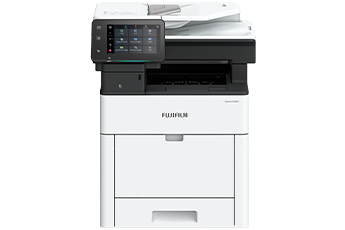


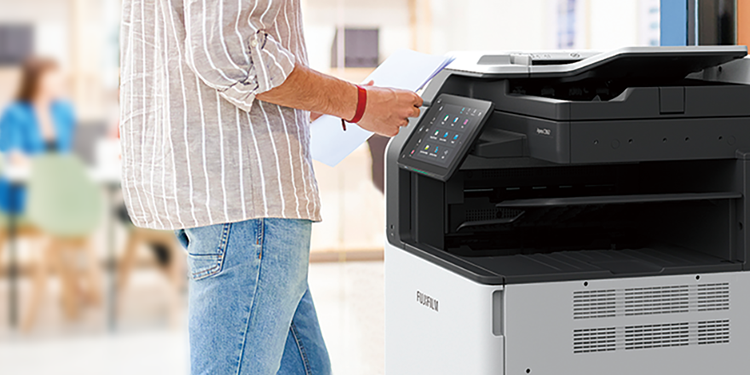









Content of received fax can be previewed on the control panel before printing, allowing you to delete unwanted documents such as unsolicited faxes and print only what is necessary to avoid paper wastage.
With ScanAuto, the pre-installed multifunction printer add-on application, you can easily send scanned data with a touch of a button and the multifunction printer will automatically select scan settings (such as document orientation, 1-sided or 2-sided) that are suitable for the document.
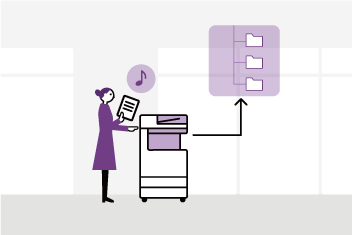
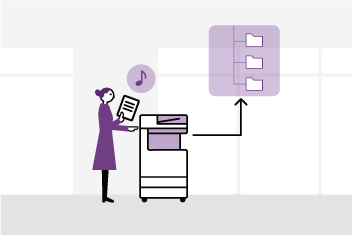
File names can be assigned from presets on the UI screen, ensuring scanned files will not get lost on the PC.
- Note: The destination can be selected from Scan (Email) or Scan (to PC)
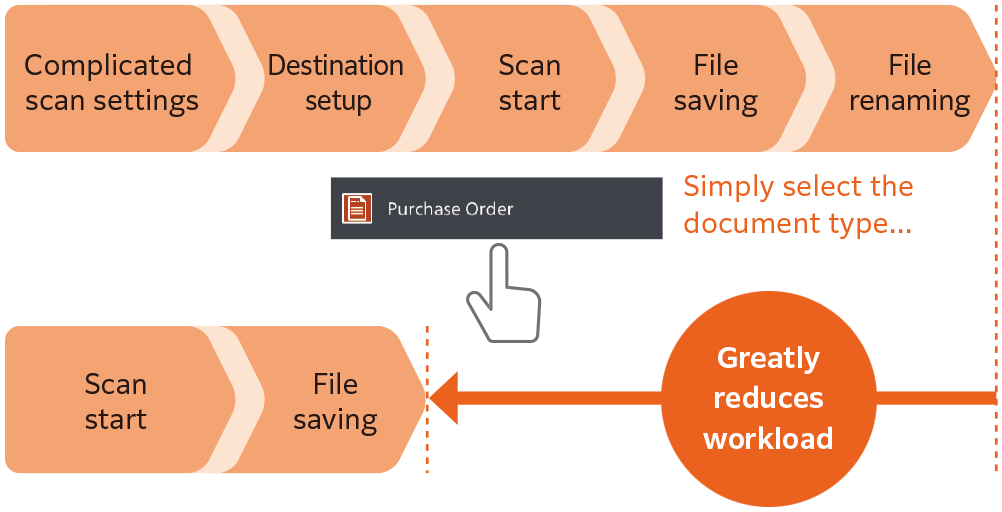
Scan Delivery Light* reduces your scanning workload by simplifying complicated and repetitive scanning workflow. Standard rules and templates can be created easily, allowing you to complete multiple actions (scan settings, storage destination designation and file renaming) with a single touch. Scanned information can also be managed and utilised centrally, improving productivity and resource optimisation.
- * Optional
The home screen allows individual user to customise frequently used app buttons and arrangement based on individual preference. Frequently used settings can be "pinned" for easy access on daily basis.
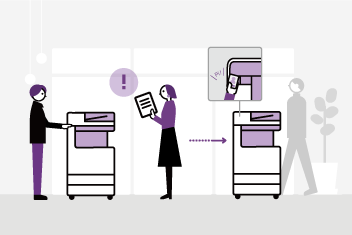
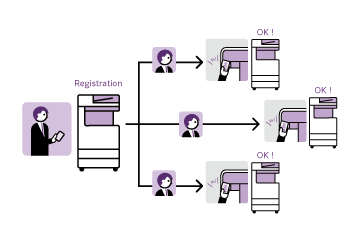
Additionally, you can connect your mobile devices through QR code scanning or NFC to Copy, Fax*1, Print and Scan*2 jobs using the Print Utility*3 application.
- *1: Optional
- *2: Scan to Mobile, E-mail, Scan to Folder.
- *3: Connect to the machine via wireless environment or Wi-Fi Direct connection. It can be downloaded free of charge from Google PlayTM or App Store.
- Note: AirPrint, Mopria® Print Service, and Mopria Scan are supported for printing or scanning by using a mobile device.
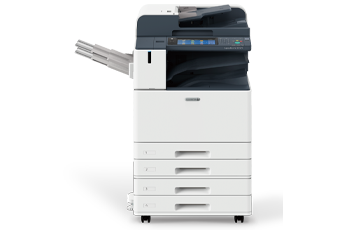
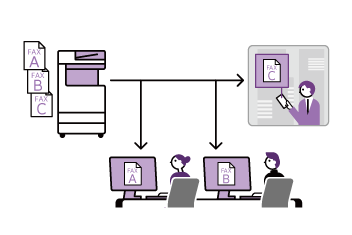
Supports output from three locations for Copy, Fax, and Print functions. This way, important received faxes are not missed, and output paper can be quickly retrieved.
- Staple
- Staple
- Staple-free Staple*1
- Punch*2
- Saddle Staple*3
- Single Fold*3
- *1: Staple-free stapling is available with Finisher-B5.
- *2: Optional
- *3: Booklet Maker Unit is required. When specifying Saddle Staple or Single Fold with Finisher-B5, paper is not folded but creased.
- *4: 80 gsm paper or less.
The high-speed 1-pass, 2-sided scanning Automatic Document Feeder holds up to 130 sheets* and scans 2-sided document in one go, allowing you to digitise large documents swiftly and effortlessly.
- Note: Installed for Model-CPS-B, Apeos C2561 and C3061 as standard.
- * 70 gsm
- Supports scanning of small-size documents (49 x 85 mm), thick cheques and thin paper receipts (38 to 128 gsm).
- Scanned documents can be transferred to e-mail, PC, or shared servers.
- Supports multi-sending, such as saving a copy to your PC while sending an e-mail to a client in a single scan.
As network connected information devices, the multifunction printer is equipped with state-of-the-art security features to protect your valuable information assets from cyber-attacks and rapidly evolving security threats.
- Unauthorised operations and access are prevented by user authentication and usage restrictions.
- Expansion with Secondary Ethernet* allows a single multifunction printer to be used on a separated network, etc.
- * Optional
- Encryption of communication paths with TLS and IPsec
- Protection of scanned files and e-mails through encryption/electronic signatures
- *Data writing to SSD is encrypted with robust AES-256 encryption, etc.
- * This feature only applies to Apeos C2561 and C3061, in which the SSD is installed as standard.
- Account lock function
- Restriction of accessible IP addresses
- Prevention of software tampering during multifunction printer startup and operation
- Automatic repair function upon detection of tampering at startup, etc.
- Fixing the delivery destination of scanned documents
- Double input of fax destinations, etc.
Newly developed toner produces exceptional colours in every tone and shade, while high resolution of 1,200 x 2,400 dpi delivers precise lines and text, giving every print a professional look
The compact design with width of 577 mm and depth of 659 mm* fits everywhere, including tight spaces, maximising office space utilisation.
- * For 1 Tray standard configuration.
Supports wide range of paper size and weight*1, giving you the flexibility to personalise and print on envelope, direct mail, posters, promotional banners, or even long POP displays*2.
- *1: Paper weight from 52 to 300 gsm
- *2: Long sheets up to 297 x 1,200 mm
FUJIFILM Business Innovation aims to address environmental issues through climate change mitigation and resource circulation efforts in our business activities. Our products are developed with unique innovations and technologies that balances environmental impact reduction and usability
Adopted a new toner and a fusing unit that enable reducing power consumption during toner fixing, the most power-consuming process in multifunction printers.
By using functional resin, our newly developed toner has achieved low fixing temperature that is 15 degrees lower than the toner used in previous models*.
In addition, the adoption of a new fixing unit achieved both low fixing temperature and exceptional image quality.
- * Toner used in the Apeos C3060 / C2560 / C2060.
In the effort to promote recycling of resources, recycled plastic materials are used* for parts such as the front cover and trays. We have overcome challenges to devise ways to suppress uneven color of the appearance of recycled plastic, which is said to be difficult to mold. And by improving the strength and rigidity of the parts, we ensure the quality of the product.
Furthermore, our products have been redesigned to allow easy disassembly and cleaning, making them easy to reuse and recycle in the future.
- * In the case of 4 Tray configuration with Duplex Automatic Document Feeder. 15 % of the total plastic weight of the device is recycled material.
- Less energy and compact with high resolution printing on LED printhead.
- Saves energy with quick startup and smart power saving feature that solely powers on the required parts according to the functions being used by users.
By optimising resin and sheet metal with thinning technology and revising the frame structure, we have achieved a reduction in body weight by 10 %* while maintaining the strength and contributing to CO2 emissions reduction in logistics.
- * For Model-CPS-ST with 4 Tray configuration. Compared to the previous model Apeos C3060 / C2560 / C2060 Model-CPS with 4 Tray configuration, including toner.
From supplies replacement to unexpected device failures, most problems can be resolved without waiting for the service representatives or sales representatives.
- Self Help information is available on the control panel
- Self Help information can be accessed via the mobile device by scanning the QR code displayed on the control panel
- Connects directly to the Support Centre
- An operator will remotely access the multifunction device to resolve the problem by guiding through the steps on the shared control panel
Connecting your multifunction printer to our EP-BB Enabling Smart Remote Service* via the internet allows for checking of billing meter, automatic delivery of consumables when cartridges level is low, daily status monitoring, and machine error detection for early intervention to rectify problem. This minimises operation downtime and reduces administrator's burden.
- Note: The content of the services provided may vary depending on the usage region. For details, please contact one of our sales representative.
- * You need to apply for using the EP-BB Enabling Smart Remote Service. (free of charge)
Device Setup Editor is a service that always backs up the latest setting information to a cloud server. It allows you to be prepared for unexpected situations and use your multifunction printer with confidence.
- Note: You need to apply for using the Device Setup Editor. (free of charge).
By launching the Remote Operation Panel from a web browser, the multifunction printer's control panel can be displayed to and operated from a PC. By logging into Administrator Mode, the system administrator can manage multifunction printers at remote business locations within the same intranet.
- Note: Within the same intranet. While the Remote Operation Panel is active, the multifunction printer's control panel cannot be operated. Additionally, the Remote Operation Panel cannot be launched while the user is operating the multifunction printer.