











Creates a synergetic space where everything and everyone gathers, promoting both internal and external collaboration.
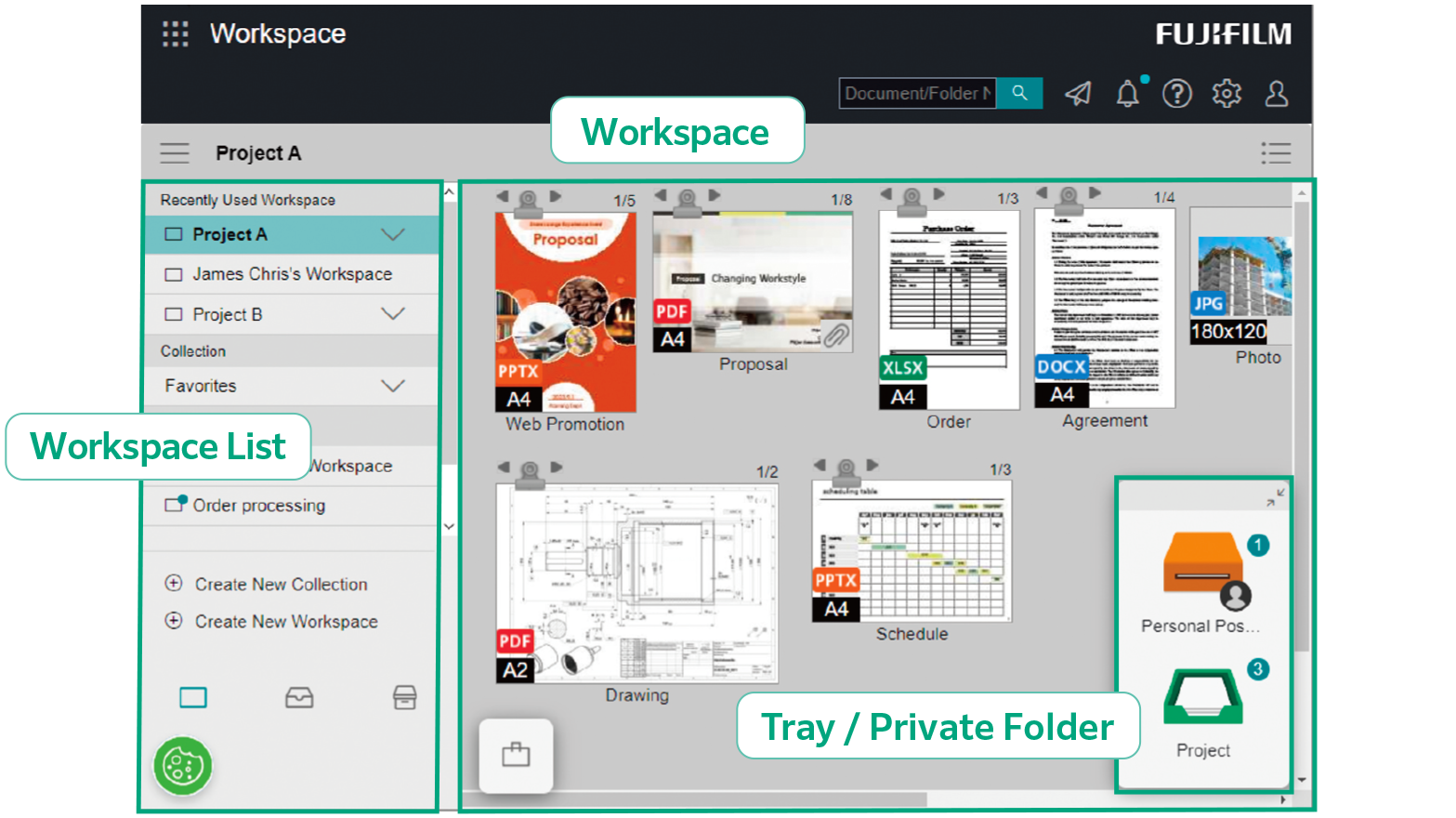
Workspace is a space to perform document-related tasks such as viewing, sharing and editing documents.
With Tray and Personal Postbox, users can transfer information to one another with simple drag & drop operations.
Tray is used to deliver files among registered users.
Personal Postbox is used to deliver files to specific user.
Note:Personal Postbox is automatically created upon user registration.
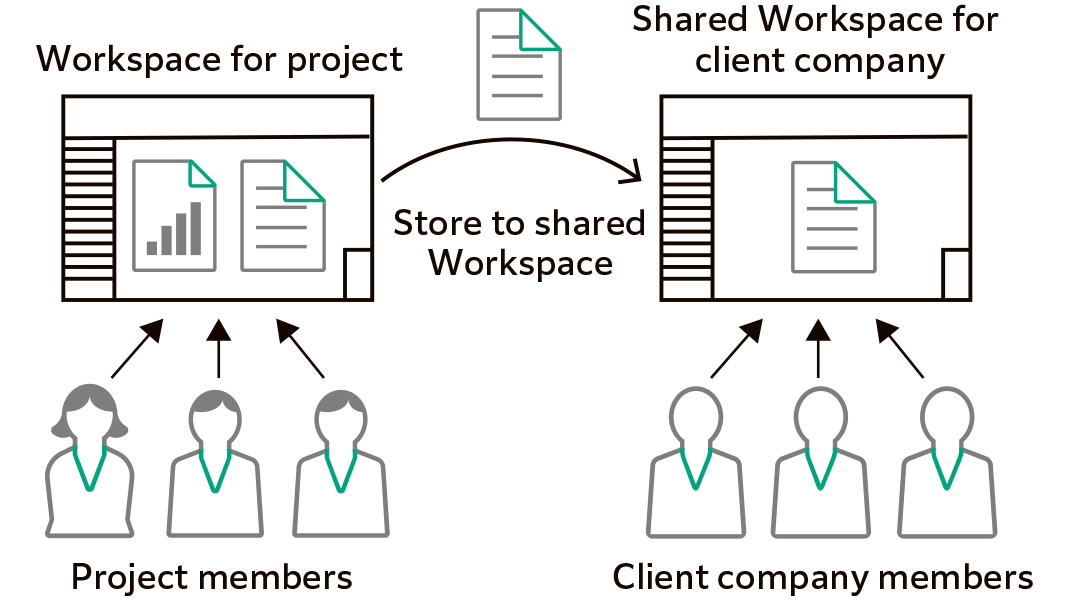
Effectively share documents among organisations or with clients via Workspace to enhance internal and external collaboration.
Multiple Workspaces can be created for specific projects, purposes, clients, etc., and assign members to specific Workspaces accordingly.
Document information is listed in table. Using List View, it is easy to identify documents from its relevant information, such as client name, date, assigned person’s name and job status.
The images of documents in Workspace are displayed as thumbnail image. Documents can be easily recognised by its image data.
Users can add comments to documents. Other members are notified of the comment, and can instantly begin communication with the sender. This eliminates the hassle of preparing and sending an email with attachments.
Users can add comments to documents when storing in Tray or Personal Postbox. When a new document is stored, notification is sent either in the form of an icon or message. This prevents the delay of processing the document due to overlooking a relevant email in the user’s inbox.
A single document can be concurrently edited by multiple members connected online. This reduces the time it takes to complete a project as activities can be performed concurrently.
Note:Requires Microsoft 365 contract.
Locking a document prevents editing by other users.
Simplify manual processes and integrate them with existing systems to enhance workflow productivity.
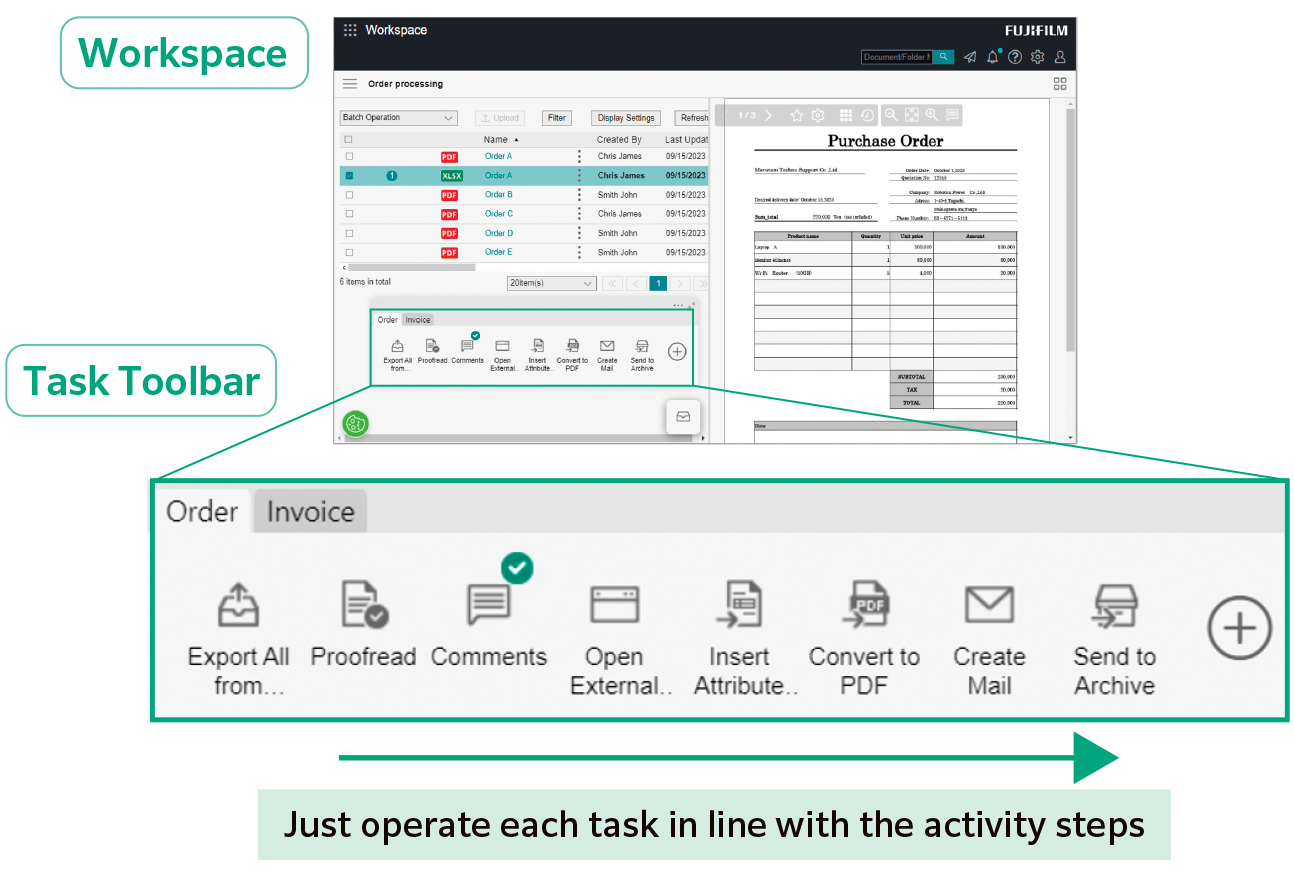
Task Toolbar is a versatile toolbar that allows you to register and manage various processes according to your workflow. These processes include importing and editing documents, calling a business system, and delivering / storing documents. By clicking the menu buttons on the Task Toolbar one by one, workflows can be processed efficiently, and errors and rework can be eliminated.
Work processes that required to complete the task can be registered to the Task Toolbar. Simplified workflow steps can minimise errors and rework, and improve work efficiency. Optimising the steps involved in an activity can help reduce oversight and rework, resulting in improved efficiency for business tasks.
Task Toolbar can be shared among members who use the same Workspace, such as order processing team.
Offers a range of tools that can perform specific activities for your workflow with a single click.
Arrange tools on the Task Toolbar in a way that optimise the button layout for your workflow.
Supports customisation of the Task Toolbar to fit with the existing workflow.
Example)
Order Process Sample
Multi-Channel Capture & Delivery Sample
Multi-Channel Capture & File Management Sample
A simple click of a button on the Task Toolbar opens the External Service Window, allowing users to access documents and data managed and stored in the business system through a browser.
Perform data operations such as registering files in the system, electronically signing contracts, and posting to approval forms on the External Service Window, to eliminate conventional manual data entry process.
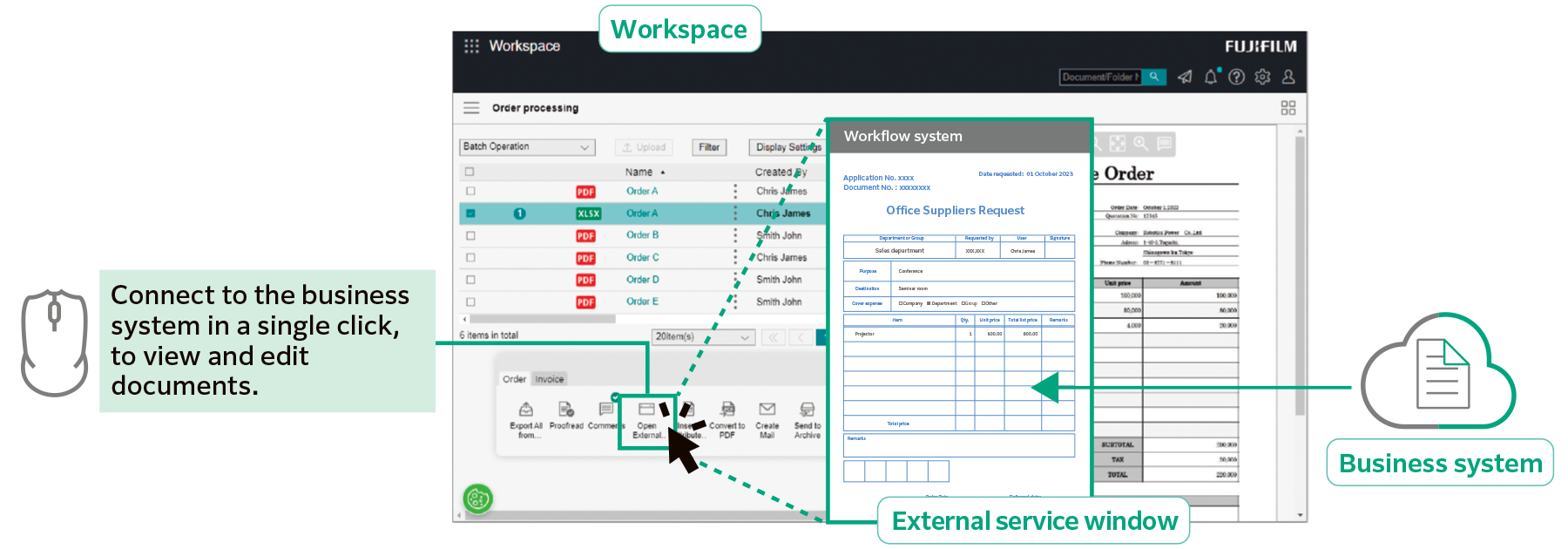
Offers tools to link with your existing business system, which can be mounted on the Task Toolbar and operated by a single click.
Document information such as client name, date, and name of the person in charge can be extracted in CSV format and linked to various business systems.
Documents in various formats can be easily bundled and combined into a single file with simple drag-and-drop operation. This is especially useful when creating documents that contains tables and image files of different application files, such as proposal documents.
Users can extract, reorder and delete pages, and split document at specific pages.
Documents can be easily edited without going back to and working on the original file.
In addition to basic stamps, custom stamps and notes, such as handwritten signatures, can be composed and attached to documents.
Convert all documents to data to connect information from document importing, utilisation, management, recording, and distribution.
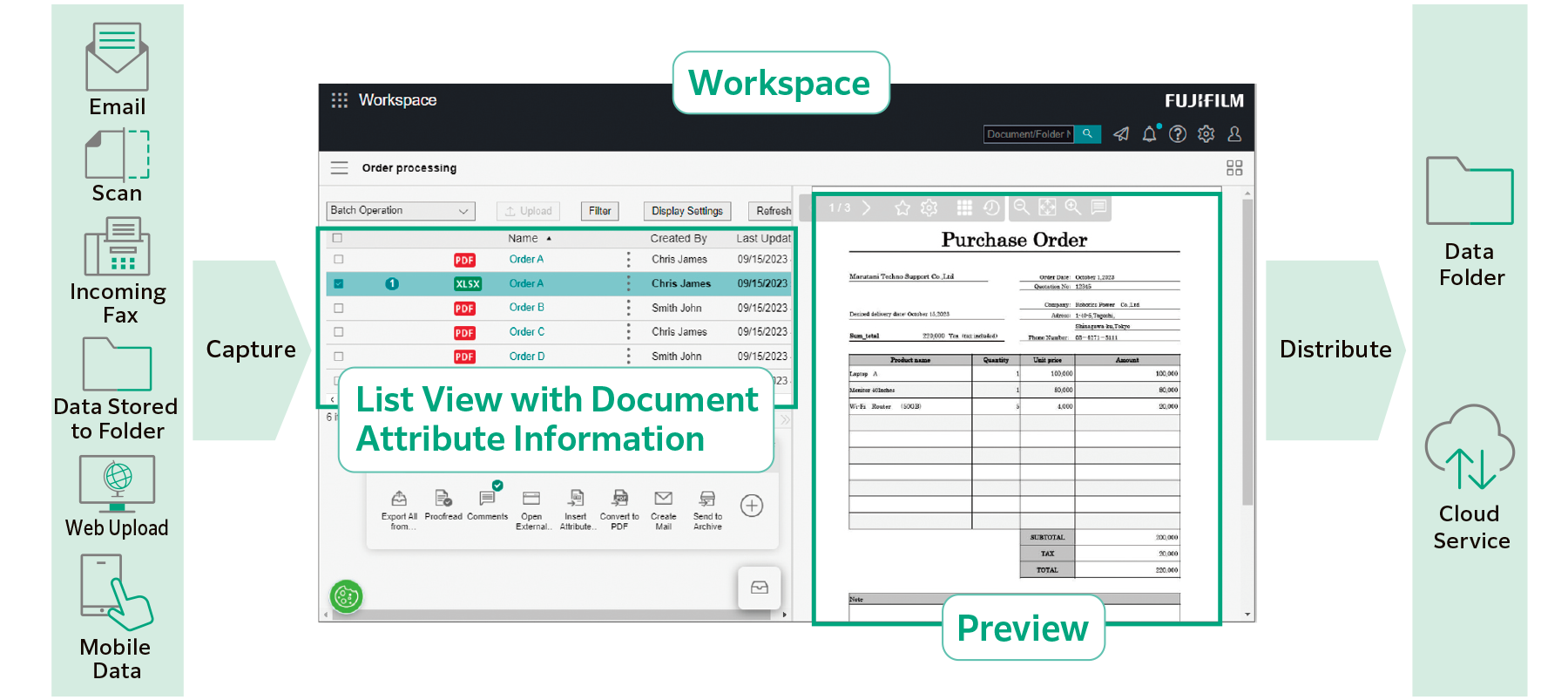
Import data from various sources, such as paper documents, incoming faxes and emails, then converts to digital data that can be used in various systems.
Data is listed by document attributes such as company name and date, preventing overlooked jobs.
An “attribute” is information associated to the document, such as author and date.
When importing a document with FUJIFILM IWpro, the document attributes are stored in a database which allows for document search functionality.
With FUJIFILM IWpro, you can choose from a variety of templates that come with predefined document processing. This allows you to automate tedious tasks such as importing data from documents that come in various formats, inputting data, and sorting documents based on your workflow.
With file format conversion, skew and orientation adjustment and removal of blank pages, documents are easy to handle in the later processing.
Documents are automatically distributed according to pre-set rules, such as storing or sending to different destination by customer or by job type.
Equipped with OCR function that extract text data from the document automatically. Extracted text data is saved and can be used for searching and other purposes.
In addition to the standard document folder structure, ”Categorization View”, which displays a virtual folder structure starting from your specified attribute, is available.
Categorization View helps to find the document you need based on your search method.
Critical documents are securely protected by setting access rights for each document or folder.
Access is controlled by setting detailed permissions for viewing, revising/updating, modifying, and displaying version history.
Critical documents are securely protected by setting access rights for each document or folder.
Access is controlled by setting detailed permissions for viewing, revising/updating, modifying, and displaying version history.
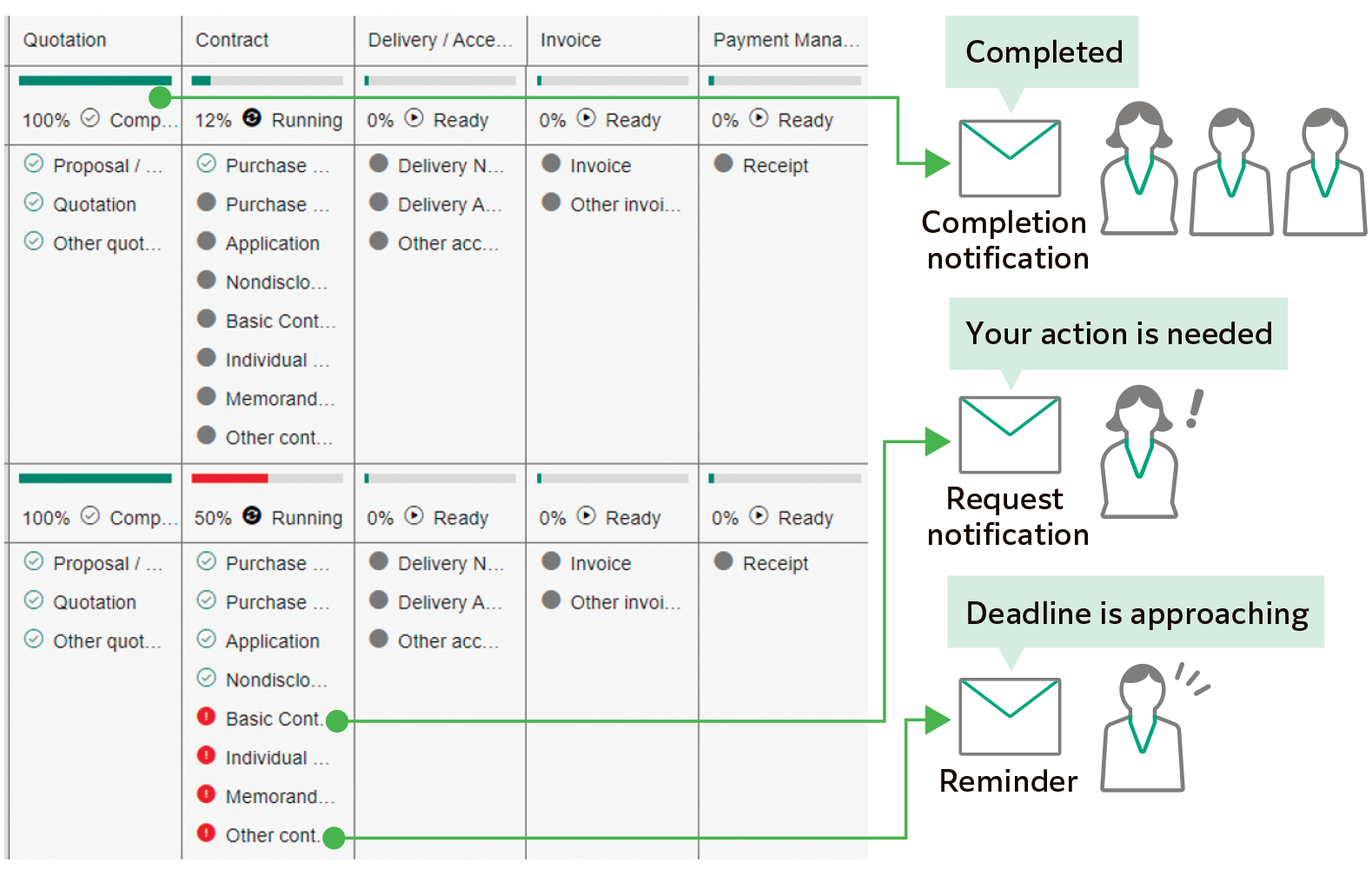
Defining the required actions and information for each step of the workflow, the workflow can be visualised.
This helps to centralise work progress confirmation and output management.
Send notifications to users automatically to notify job status, such as request for processing the job, approaching deadline.
Connect every workplaces with a system that is accessible from anywhere, regardless of physical location.
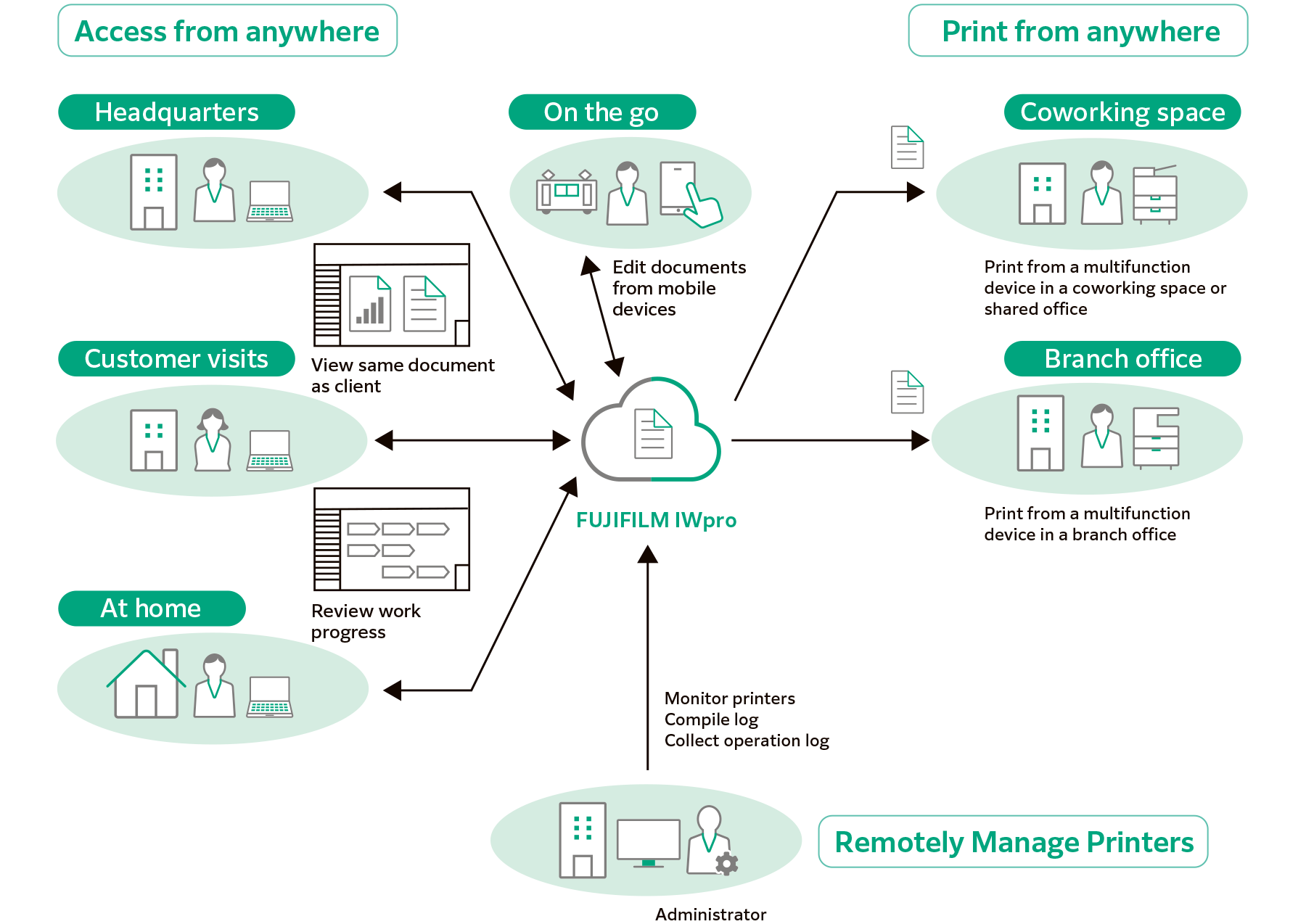
Support access from Windows OS, Mac OS and mobile devices (iOS and AndroidTM OS).
FUJIFILM IWpro is accessible via a web browser from any location that has internet service, such as from branch office or on the go.
High-quality and secure print environment is available regardless of your location, either in or out of your office.
Users can select and print the document that store in the cloud with the multifunction device outside of office.
Using “Shared User” function, temporary user such as visitor can print document without user registration. Just upload the print data from the Web link provided by the administrator.
- *1 Option
The approval printing configuration ensures that printing can only commence after receiving approval from a supervisor, effectively safeguarding against information leaks that may arise from off-site printing activities.
With FUJIFILM IWpro, administrator can easily compile and manage usage status of printers from a Web browser. This reduces the administrator’s burden and also helps to reduce total cost of ownership.
When a user prints a document on a multifunction device, the usage status is displayed on the device's panel. This allows the user to keep track of the number of pages they are printing, among other information.
Supported printer models come with the capability of automatic user registration, making the process more straightforward. Moreover, you can opt for synchronisation with Microsoft Entra ID*2 and LDAP servers, streamlining the user registration process.
- *2 Former name: Microsoft Azure Active Directory (Azure AD)