









For customers considering the perpetual license version, start with a free 60-day trial.
Using the DocuWorks 10 trial edition as an example, the steps from software download to installation are outlined below.
Steps to Get Started
- Log in to FUJIFILM BI Direct and download the trial edition
- Install the trial edition
- Get Started
Steps to Get Started
- Register as a user on FUJIFILM BI Direct
- Log in to FUJIFILM BI Direct and download the trial edition
- Install the trial edition
- Get Started
First, create a FUJIFILM BI Direct account. If you already have an account, please proceed to "Download the Trial Edition".
- Access the user registration page and register your email address and password. (Provisional registration)
- When you receive an email from us at the registered email address, access the URL in the email body and enter the required information. (Full registration)
- Confirm that you have received an email from us notifying you that full registration has been completed.
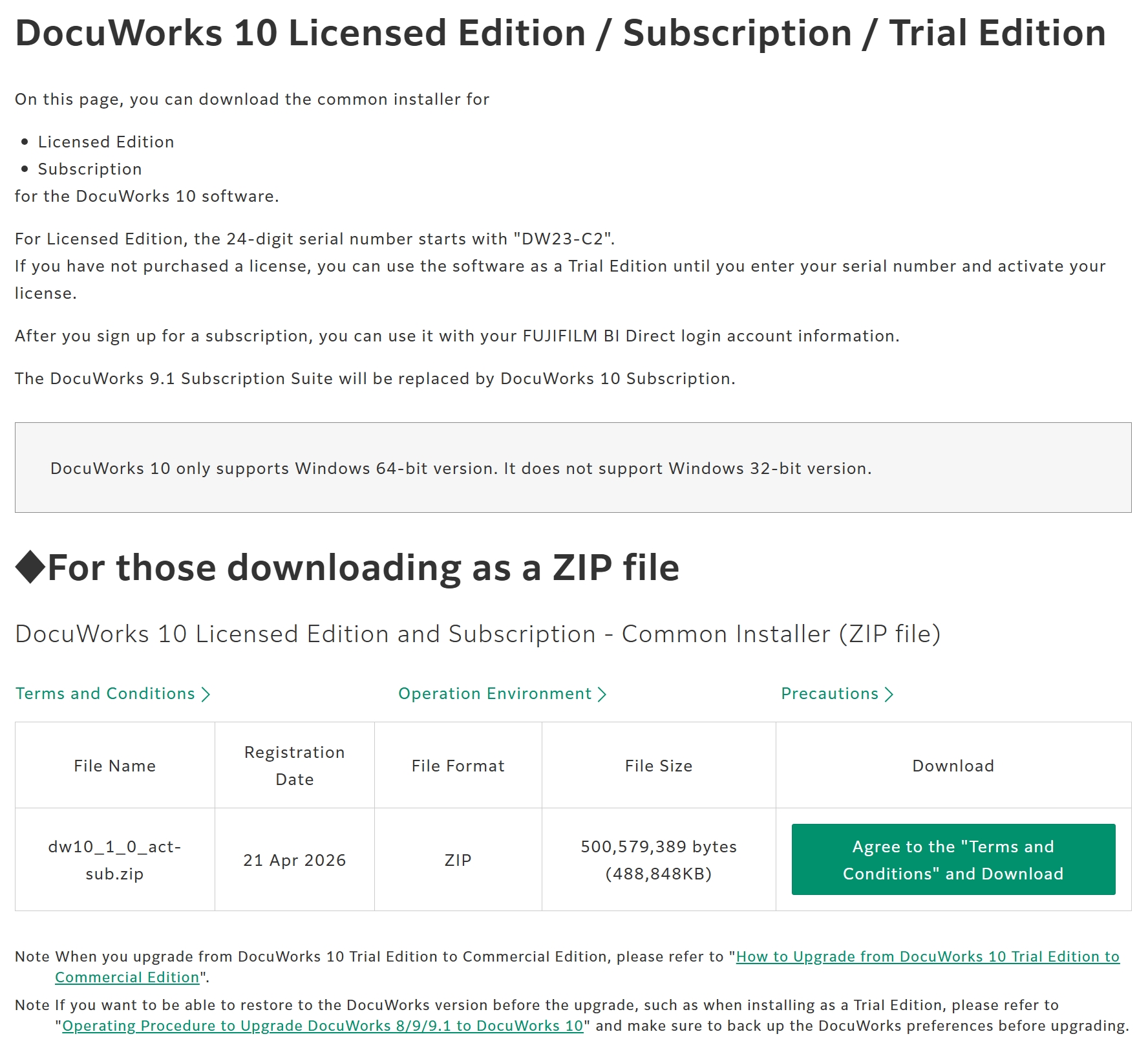
1. Click "FUJIFILM BI Direct DocuWorks Download" below.
2. The FUJIFM BI Direct login screen will appear. Enter your registered user ID (email address) and password to log in.
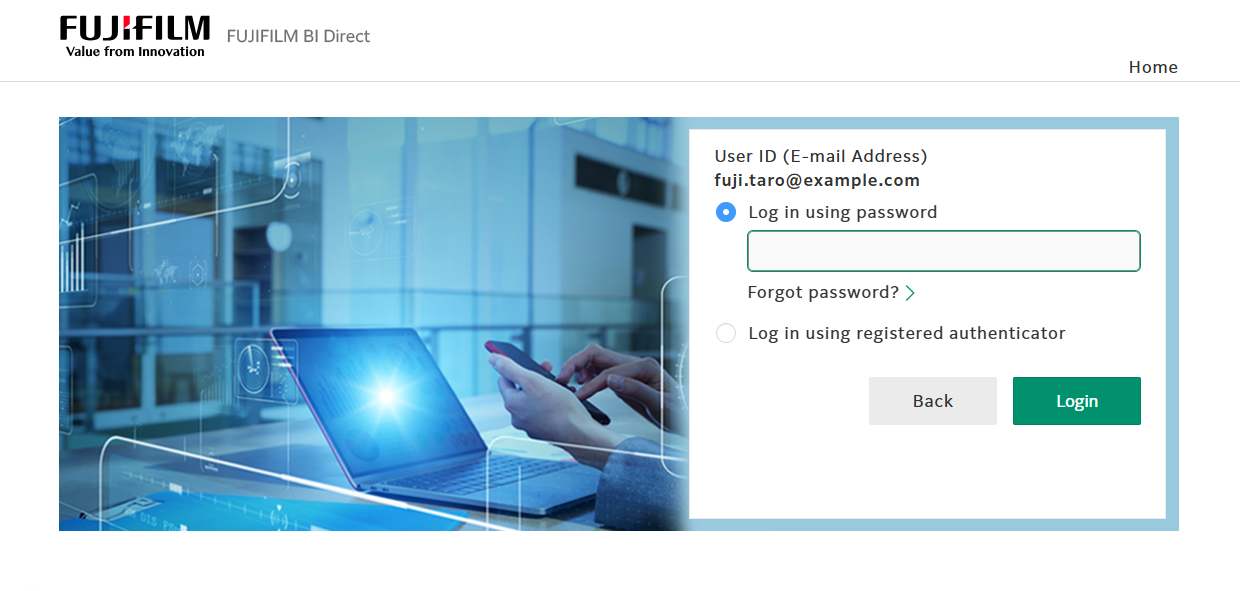
3. When the DocuWorks Download page appears, click "DocuWorks 10 Licensed Edition / Subscription / Trial Edition", then click Agree to the "Terms and Conditions" and Download.
Note:
- The trial software is available for 64-bit systems only.
- The download behavior may differ depending on the web browser. Please follow the instructions displayed in your web browser when downloading the file.
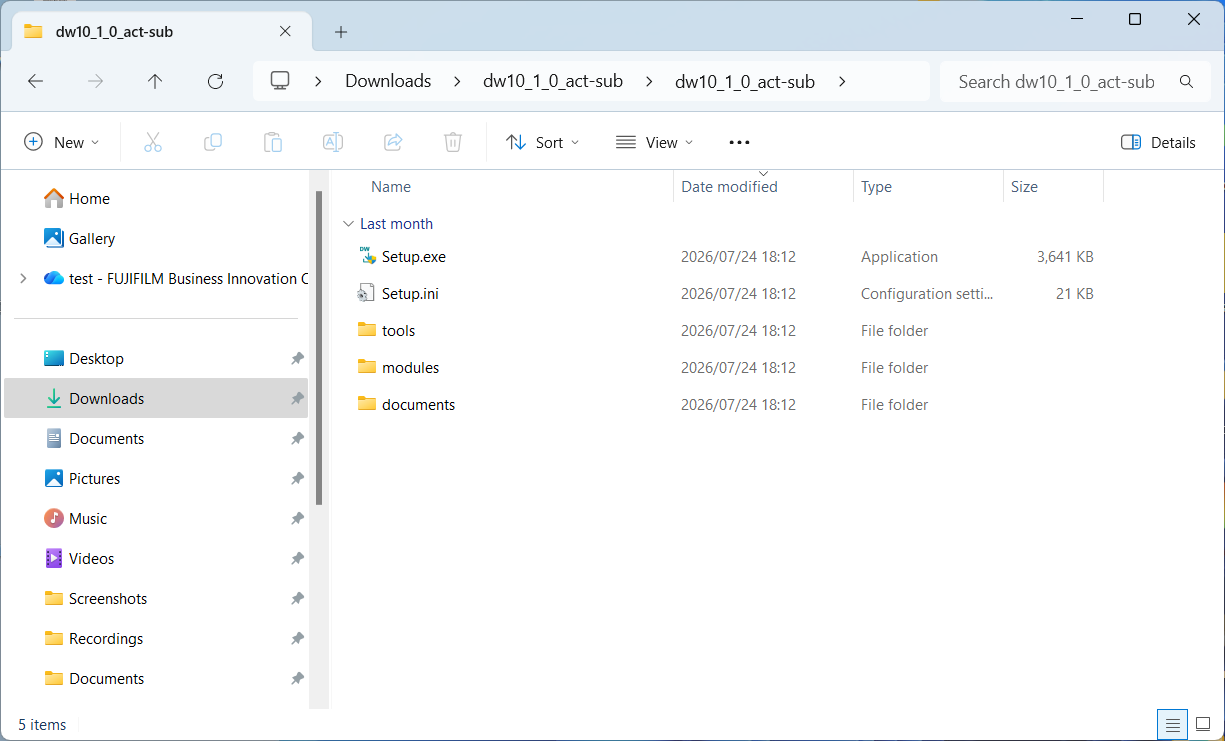
Install the downloaded Trial Edition. The downloaded file is a ZIP-format compressed file, so please extract it in advance.
1. Double-click the installation program "Setup.exe" and follow the on-screen instructions to proceed with the installation.
2. When "Setup Wizard has completed" is displayed, click "Finish".
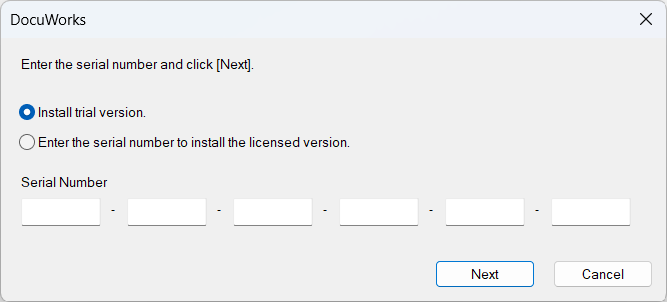
3. When the serial number entry screen appears, select "Install trial version" and click "Next".
Note:
- The default setting is "Enter the serial number to install the licensed version", so be sure to change the selection to "Install trial version".
4. When "DocuWorks 10 has been installed successfully" is displayed, the installation is complete.
1. Double-click the DocuWorks icon displayed on your PC desktop to launch DocuWorks Desk.
Note:
- When using DocuWorks for the first time, the "DocuWorks Personal Settings" dialog box will appear before DocuWorks Desk launches. Follow the on-screen instructions to complete the initial setup.

The DocuWorks 10 icon displayed on the PC desktop
2. Select a file created in an application such as Word or Excel, then drag and drop it onto DocuWorks Desk to convert it into a DocuWorks or PDF document.
3. On DocuWorks Desk, select the document converted to DocuWorks or PDF in step 2, then drag and drop it onto another document to bundle them into a single document.
Except for the 60-day trial period, it is the same as the licensed edition.
No. The trial edition becomes unusable 60 days after installation. Even if you reinstall after uninstalling the trial edition, or revert from the licensed edition back to the trial edition, the trial period will not change.
Yes. By purchasing the license product and performing license authentication, you can use it as the licensed edition. For details on how to migrate from the trial edition to the licensed edition, please refer to the support information below.