










Electronic stamp can be added on the printed sheet.
Up to 99 stamp patterns created on a PC can be registered. It eliminates the need to manually stamp drawings before distribution.
- * An optional Stamp KIT is required.
- * The above stamp is image. Check the actual stamps on the device.
Easy to read or correct print outs of drawings and text with reproduction of fine lines and small texts using new LED print head with a high performance light-emitting device.
Sharp and clear drawings which are easy on the eyes can be reproduced with the gloss-suppressed EA-Eco LGK toner
“Sample Copy” function can be used to check how your copy will turn out.
- * An optional Color Scan Memory KIT is required.
Long documents of up to 15 m*1, such as drawings for roads and railroad tracks, can be copied in a batch.
- *1 Plain paper
Vibrant colour scanning of A0 size documents at 600dpi. To prevent scanning mistakes, you can preview scanned images first. Loading next document in the scanner immediately starts document scanning, which makes it useful even when you are scanning multiple documents.
- * An optional Color Scan Memory KIT is required.
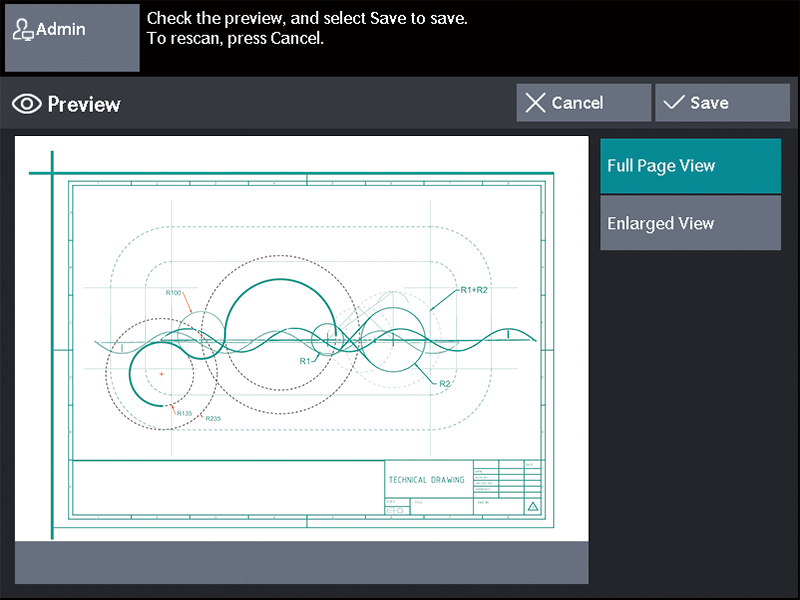
View preview
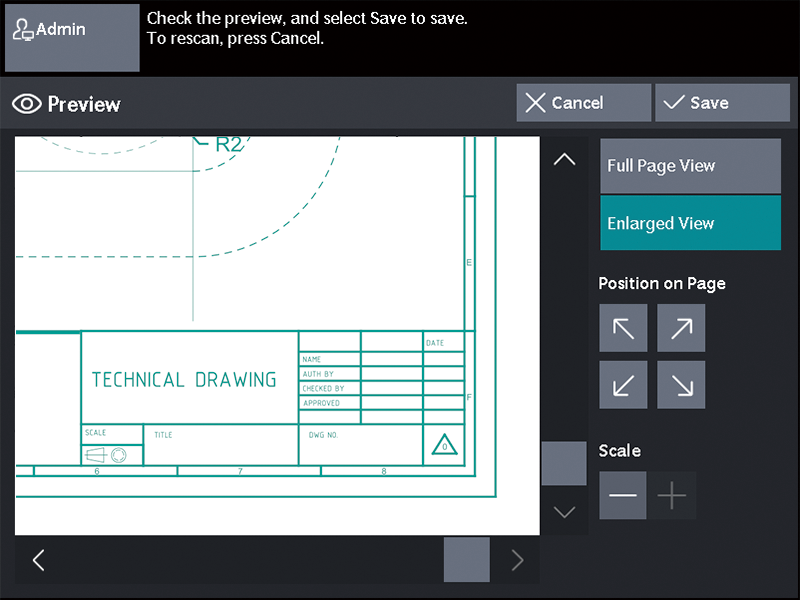
Zoom to display the drawing information
Scanned drawings can be stored directly to your PC (SMB shared folder) on the network. TIFF, PDF, JPEG, and DocuWorks formats are supported.
Scanned drawings are temporarily saved in the device and you are sent an email with a URL for retrieving saved ones. This feature enables you to retrieve scanned drawings via a web browser when data size is too large to be sent as an email attachment.
- * Only when using authentication
Eliminate waiting time and increases operational productivity by performing scan and print at the same time.
Documents can be saved to a folder in the device and imported from a PC. By registering the folder in DocuWorks Desk*1, scanned and saved documents can be checked in form of thumbnails.
- *1 Separately sold software "DocuWorks" is required
To improve workflow efficiency, multi-send scan allows you to save and print a file simultaneously with a single scan operation. Print to other multifunction devices on the same network is selectable.
Prevents misprints left on the device, and protects the privacy of the users' print jobs by authenticating with the device first before seeing their print jobs.
- * The authentication mode must be enabled.
Password can be set when scanning and directly saving DocuWorks or PDF documents to your PC. Restrictions can be imposed to allow only specific users to view and print documents.
TLS1.3 provides enhanced privacy and performance of networked communications.
- *1 Transport Layer Security
Encrypts data and prevents data tampering.
You can print text on the background of the document to prevent copying of confidential documents.
Prevents sharing of confidential documents in the same device by using the secondary ethernet kit to allow users to share and use the same device for printing in two completely independent network environments.
Prevent access of unauthorised users by authentication with the user data in the device or in an external server.
Deters unauthorised users from operating and accessing the device by allowing users to authenticate with the device with a tap of the IC Card. Like multifunction printers for office, you can also use the device without authentication by holding an IC card over a card reader.
- *1 Optional.
Maintains excellent continuous print speed and output quality, even during long runs.
| A0 | A1 LEF | |
|---|---|---|
| ApeosWide 3030 | 3.2 sheets/minute | 7.0 sheets/minute |
Maximise productivity and minimise downtime by connecting the device with our EP centre via encrypted internet lines.
- *1 EP-BB : Enterprise Broad Band service
The machine automatically notifies the meter counts on the preset date and time daily and monthly.
The latest version of the controller software is downloaded as needed, allowing updating the device. This has two methods, which are manual updating by the system administrator via the control panel and automatic updating with date/time specified beforehand.
10.1-inch colour LCD panel with excellent visibility.
Paper sizes up to A1 size (LEF in case of A1 sizes) can be handled from the internal output tray of the device main body.
- * Optional Paper Catch Tray (Front) is required for A0 / A1 SEF.
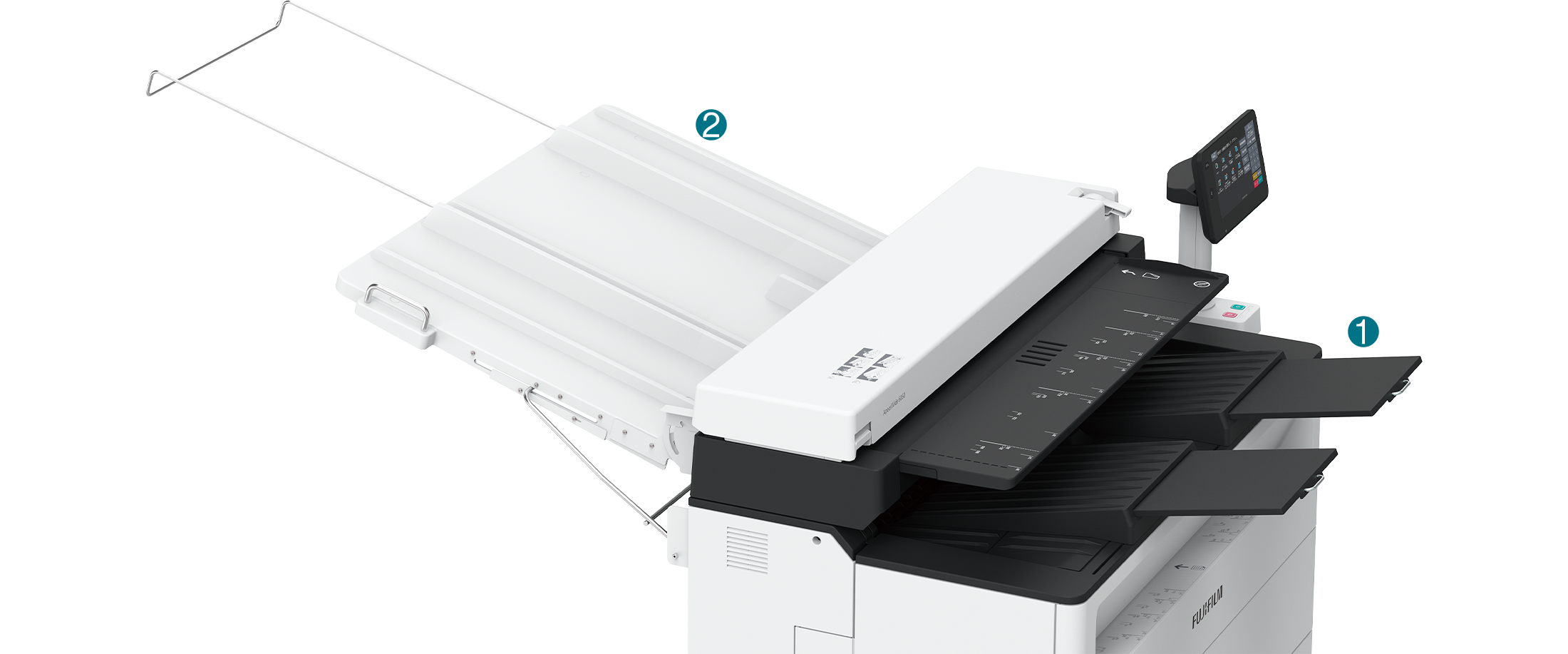
A tray for storing printed paper to the front of the device.
A tray for storing originals outputted to the rear of the device in flat condition.
Deliver original documents to the front side
Guide used for manual paper feed
Enables the black-and-white scanner.
Required to print/scan to PDF/PostScript® format data.
A digital stamp that is printed on the output paper in black-and-white.
- *1 Select required option.