











work more efficient. "DocuWorks Tray" allows documents to be easily transferred and information to be shared.
Streamline standard work by registering frequently-used functions and task procedures to the Task Toolbar. The customised
Task Toolbar can be placed at the bottom of the DocuWorks Desk screen to share with all team members.
Tab colour and size can be customised for each task or operation, making it easy and straightforward to use.
Register icons in accordance with the flow of work. Performing operations in the order of the icons in Task Toolbar
eliminates operational errors and is helpful in streamlining standard tasks.
- Note: Up to 30 tabs can be registered.
Since a mark is left on the icon of the job that was implemented last, it is possible to work concurrently on multiple tasks
and understand the progress you have made on each.
Settings information for Task Toolbar can be exported and imported. By sharing the settings for Task Toolbar with your
team, it is possible to carry out tasks with the same flow even if the person in charge of the task changes.
Customise Task Toolbar to suit your specific preferences by simply dragging & dropping icons for each individual task.
Operations that occur daily can be executed with a simple button operation, allowing you to work with greater efficiency.
For example, by setting up continuous execution for the following operations, multiple documents that match the conditions can be grouped together and the work completed in a batch.
- Select documents that have been updated within thetime period
- Add the date to the beginning of the file name
- Combine in a binder
Date stamps can be stamped at predetermined locations. This is useful in situations where approval stamps are required on standardised forms.
You can open and edit document templates created in Word/Excel, etc. to generate DocuWorks files. This is recommended when creating documents from standard templates.
Scanned documents that have been tilted can be easily corrected at the touch of a button.
OCR processing is performed and the read text can be output to Word/Excel/text documents, etc.
Faxed or scanned documents can be imported from the multifunction device to DocuWorks Desk via the tray. You can also
share documents with others simply by placing the document in the tray.
Transfer of paper documents using a tray was reproduced in a PC environment. Since newly-arrived documents are notified by an icon and popup screen, it's hard to be overlooked.
Fax documents received/paper documents scanned via a FUJIFILM Business Innovation multifunction device are
automatically forwarded to DocuWorks on your PC. By also using "DocuWorks Tray" that allows for transfer of documents
as though placing a paper document on a tray, it is possible to visually see that you have received a document.
You can send a fax directly from DocuWorks Desk. You no longer need to go to the fax machine or print out a document to
send it, which also contributes to saving paper.
By using "Clear Folder" and "Envelope", you can store and manage documents in various formats, including Word and Excel files. When collaborating with multiple people, documents can be placed in a "Container" and shared in a tray, allowing editing to be resumed seamlessly. The "Container" can be expanded in DocuWorks Desk like a user folder, enabling efficient work while using the Task Toolbar.
With DocuWorks, documents stored in the cloud can be handled as intuitively as paper.
Share documents easily — anytime, anywhere.
Easily register attributes while viewing a document. Work is streamlined as you can search documents based on the
registered attribute information. It is also possible to register and search for attributes by operating the buttons on the
Task Toolbar.
Attribute values such as customer name and delivery date can be registered in DocuWorks documents and PDFs. You can
also specify the necessary area with the mouse and use the result of OCR processing as the attribute value, reducing the
time and effort involved in attribute input.
Sorting rules can be set up to sort by attributes at the time of registration. Two destinations can be set from folders, trays,
etc.
Files can be filtered by searching based on attribute values. It is also possible to select which attributes to output and
output them to a CSV file. The CSV file can be used as the source data for the management ledger.
Use Attribute View to efficiently display only those documents that meet your criteria.
Share documents easily — anytime, anywhere.
Work directly with documents saved in the cloud. Add sticky notes and stamps,bundle or separate documents, and use the task toolbar — all through simple, intuitive operations.
Simply drag and drop to easily send and receive documents via cloud storage.New documents are announced by icons,pop-ups, and sound notifications, so you never miss anything.
View, search, and perform simple edits on documents stored in the cloud directly from your mobile device. Even when you’re away from the office, you can work just as naturally as if you were at your desk.
DocuWorks documents shared in the cloud can be viewed directly in a web browser, where you can also edit them by adding sticky notes, stamps, and other annotations.
- *1 Supported services: OneDrive for Business and SharePoint Online under Microsoft 365 Business or Enterprise plans. A DocuWorks subscription or a DocuWorks Cloud Connect contract is required. Please refer to the official website for the latest supported operating environments.
- *2 Supported services: Microsoft OneDrive, and OneDrive for Business and SharePoint Online under Microsoft 365 Business or Enterprise plans.
- *3 Supported services: Microsoft Teams, OneDrive for Business, and SharePoint Online under Microsoft 365 Business or Enterprise plans. The DocuWorks Viewer Light browser extension must be enabled in Google Chrome™ or Microsoft Edge. Whether editing is available depends on the document permissions, storage location, and contract conditions. Viewing and editing may become unavailable due to specification changes in third-party services.
Now you can edit DocuWorks documents with ease and rotate, stack, unstack, etc. at the touch of a button, even from
a mobile device. This allows handling of electronic paper with greater freedom, just as if you were working at a desk.
- Note: Supported devices: iPadOS / iOS / Android devices.Requires purchase of DocuWorks 10 package version or DocuWorks subscription contract.
By linking with FUJIFILM Business Innovation' add-on applications, routine scanning work and digitization/sorting work of
received fax documents are automated. This makes operations more efficient.
By simply selecting a task name or document type, tasks such as adding a file name/attributes, file conversion and image processing are carried out in accordance with set rules, and documents are automatically sorted depending on their type and date. Routine scans are streamlined.
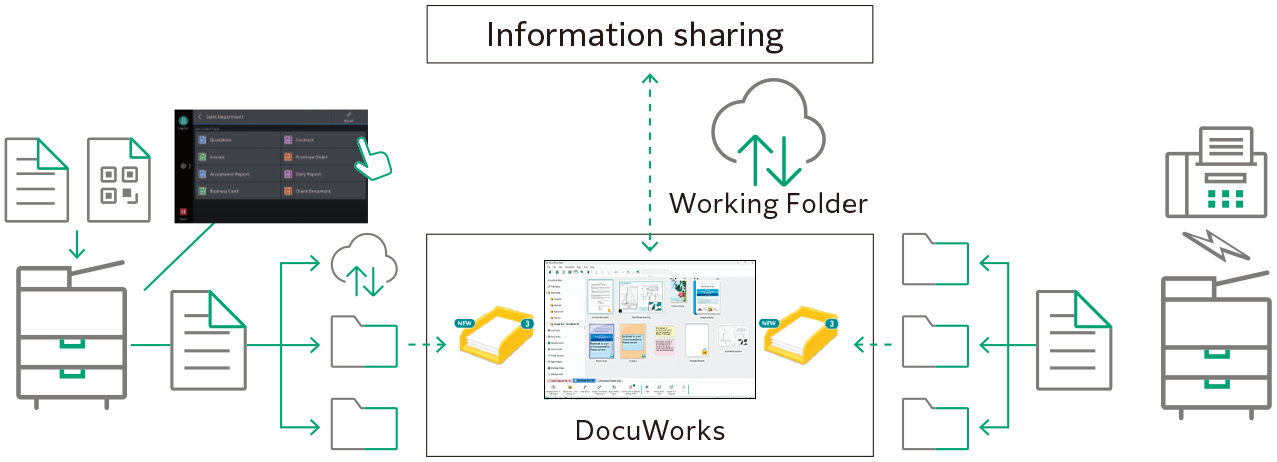
Fax documents received on a multifunction device are sorted/assigned attributes based on the fax number and date received, and are then digitized and automatically sorted. Paperless fax operations that meet your needs, such as the ability to support a schedule function, are also possible.
With Working Folder, you can share documents while on the go.