


![[icon] Healthcare IT](https://asset.fujifilm.com/www/in/files/2024-08/c726e5e0c277870421d39dd4a7262612/healthcare-it.svg)
![[icon] X-ray](https://asset.fujifilm.com/www/in/files/2024-08/97ad89d1f533a60255b31a3bb7e87f47/x-ray.svg)
![[icon] Ultrasound](https://asset.fujifilm.com/www/in/files/2024-08/88f22761d4baa698057e399be91c2931/ultrasound.svg)
![[icon] Endoscopy](https://asset.fujifilm.com/www/in/files/2024-08/5d83571c7db995ad7195350862b52122/endoscopy.svg)
![[icon] In Vitro Diagnostics](https://asset.fujifilm.com/www/in/files/2024-08/8e66090fd5fea6bd1a05b991e7fe5f19/ivd.svg)
![[icon] Veterinary Medicine](https://asset.fujifilm.com/www/in/files/2024-08/54a13b2f355c18f70f7336732d67d910/veterinary.svg)
![[icon] MRI and CT](https://asset.fujifilm.com/www/in/files/2024-08/59ab2ad2e91be9f36994d8e58caa3d5d/mri-and-ct.svg)
![[icon] Inkjet Solutions](https://asset.fujifilm.com/www/in/files/2024-08/d8c2d670f1512cdf6ba52f9cffeacc2a/inkjet-solutions.svg)
![[icon] Office Printers](https://asset.fujifilm.com/www/in/files/2024-08/019d3332c15554d2ff48d12e4a195db2/office-printers.svg)
![[icon] Semiconductor Materials](https://asset.fujifilm.com/www/in/files/2024-08/b48b0555c0fd6b3f489af25567574dfc/semconductor-materials.svg)
![[icon] Graphic Arts & Printing](https://asset.fujifilm.com/www/in/files/2024-08/4f170ed9bf426e6f039ee8a5d7b95431/graphic.svg)
![[icon] Photofinishing Products](https://asset.fujifilm.com/www/in/files/2024-08/a22d0f5f3c19c49f277a655c1abef8d5/photofinishing.svg)
![[icon] Optical Devices](https://asset.fujifilm.com/www/in/files/2024-08/be5be06f90f11989998f2b69104a21b4/optical-devices.svg)
![[icon] Cine & Broadcast Products](https://asset.fujifilm.com/www/in/files/2024-08/4b6eeb5ab60e77f85f96868e07ea725b/film-and-broadcast.svg)
![[icon] Security Protections](https://asset.fujifilm.com/www/in/files/2024-08/e9824ba0a1bf61978034474b14459e0b/security.svg)
![[icon] Manufacturing Process](https://asset.fujifilm.com/www/in/files/2024-08/8b7297a2bcf2bbcd895abedad309b07e/manufacturing-process.svg)
![[icon] Inspectional Products](https://asset.fujifilm.com/www/in/files/2024-08/9f1a77b67283252abd21e466f1f58b9a/inspection.svg)
![[icon] Data Management](https://asset.fujifilm.com/www/in/files/2024-08/1be5c4580857f95e00e5c3ed42575945/data-management.svg)
![[icon] Materials](https://asset.fujifilm.com/www/in/files/2024-08/7842ec025120578b341dd5a09c46108f/materials.svg)


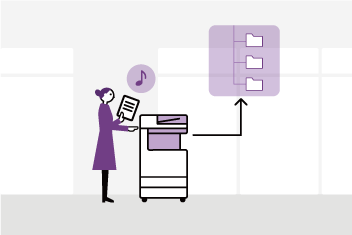
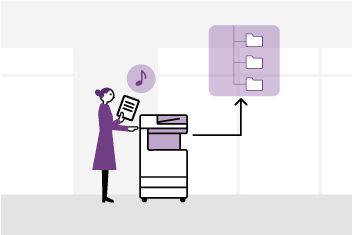
Scan Delivery*1 is designed to automatically scan paper documents and sort them into transfer destinations. It saves time by eliminating manual processes for routine tasks and ensures accurate and reliable filing.
You can register various settings in advance, such as the document reading method, image processing, output format, and save destination, and then call them up with the push of a button when scanning.
Administrators can pre-register document scanning methods and file saving methods for routine tasks in the MFP. Users simply place the document on the MFP and press the button corresponding to the document type, and the process from digitizing paper documents to saving is automated.
The entire process from scanning to saving can be done automatically, or the user can check and operate the process as the scan is being performed, allowing users to set up a workflow that suits the contents of the documents and the environment.
The use of Scan Delivery allows you to automate tedious processes, making scanning more efficient and ensuring consistent quality for the users.
Information that sets the document flow, such as the scanning method and saving method, is called "document type" information. Document type information can be grouped and registered according to the type and content of the task. The task information used for grouping is called "task type" information.
In Scan Delivery, you can set up to eight task types. You can also set up to ten document types for each task types.
- Select Scan Delivery from the menu screen
- Select the applicable job from [Job Type]
- You can set up to 8 job types
- Select the applicable document from [Document Type]
- You can set up to 10 document types
You can choose to save your document in the following formats:
- TIFF (Multi-Pages per File)
You can also scan multiple documents at once and save them separated by blank pages, QR codes, and barcodes. You can also automatically sort scanned documents by task type, document type, date, and user name. The destination folder name and file name can be set by combining these document attributes with any character string.
You can specify the destination to save the document in one of the following locations:
- FTP server
- Shared folder on Windows or Mac (SMB Transfer)
- *1 A paid application "Scan Delivery" is required.
When documents are saved in PDF format, the following three attributes can be added to documents. These attributes are referred to as "regular attribute".
- [Service Type]: the service type selected at the scanning.
- [Document Type]: the document type selected at the scanning.
- [User]: the name of the user who scanned documents.
You can also add any attribute and its value to the document. These attributes are called "extended attributes". Extended attributes can be set in the document type information, and can also be entered by the user when scanning. Up to six extended attributes can be set.
Values of extended attributes and regular attributes are saved as custom properties (in the custom attribute format) in scanned documents as well as a single-line string in [Keywords] on the [Description] tab of Document Properties. The saved attribute values can be used for searching files.
When a QR code or barcode is attached to the header sheet or main text of the document, Scan Delivery reads and processes information from the QR code or barcode.
QR codes or barcodes containing arbitrary text string can be attached to documents and information embedded in it can be used. The text string read from the QR code or barcode can be used for the naming rules for storage location folder or saved in a PDF document as an extended attribute, according to the document type setting. A part of the text string read from the QR code or barcode can also be extracted.
- Note: Supported QR code text strings are only Japanese and English.
This function automatically extracts specific document information from standard forms such as estimates and invoices. By using this function, you can sort documents and set file names using the information contained in the documents, eliminating the need to check the contents of the files and change the file names later for sorting purposes.
Extracts attributes from a template (repetitive document). Text extracted automatically can be used for file names of scanned documents or folder names of save destinations.
The following templates are supported.
- Invoice
- Quote
The specific conditions such as "supplier/client name", "creation date", "management number", and "due date" in the scanned document are automatically extracted.
If you have a standard form other than an estimate or invoice, you can extract text within the specified area. The automatically extracted text can be used for the file name of the scanned document or the name of the folder where it is saved.
Prepare a black and white document and circle any area you want with a colour marker (green is recommended). When you scan the document, the area circled with the colour marker will be set as the scanning area.
Specify the position of the scan area in the range from 0 to 500 mm from the upper left of the document, and the width / height in the range from 2 to 500 mm. Text is automatically extracted if any part of the text included in the area.
- Note: Searchable Text may be processed incorrectly depending on the character type. In this case, correct the text in the [Text Extraction Result] screen when you scan.
Examples of text misrecognized frequently:
"Capital letter O" ⇔ "Digit 0"
"Capital letter I" ⇔ "Digit 1"
"Capital letter S" ⇔ "Digit 5"
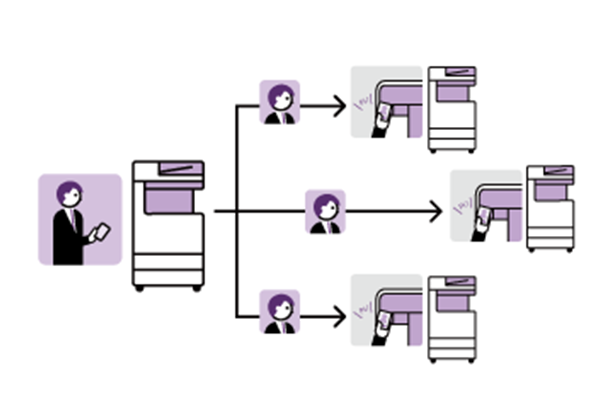
You can notify specified users of the result of document scan processing.
- Note: To use the e-mail notification feature, the e-mail sending server (SMTP) and the email notification service must be set in the multifunction device.
The operation and management of Scan Delivery is performed from the plug-in setting screen displayed by the Internet service. On the plug-in setting screen, you can register, edit, and delete document type information. You can also export the setting information and import it to other MFPs.
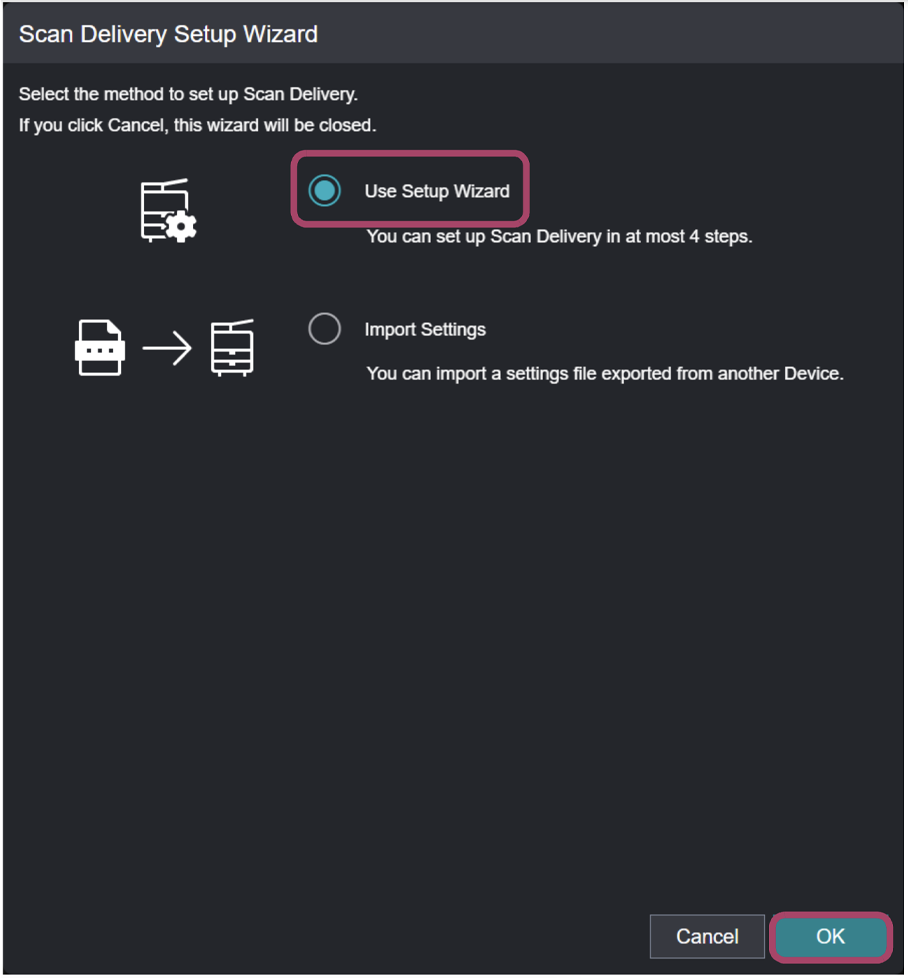
The administrator can easily complete the initial settings in three steps by using the Scan Delivery Setup Wizard.
- Select a recommended service type.
- Set a destination.
- Select the file format to save.
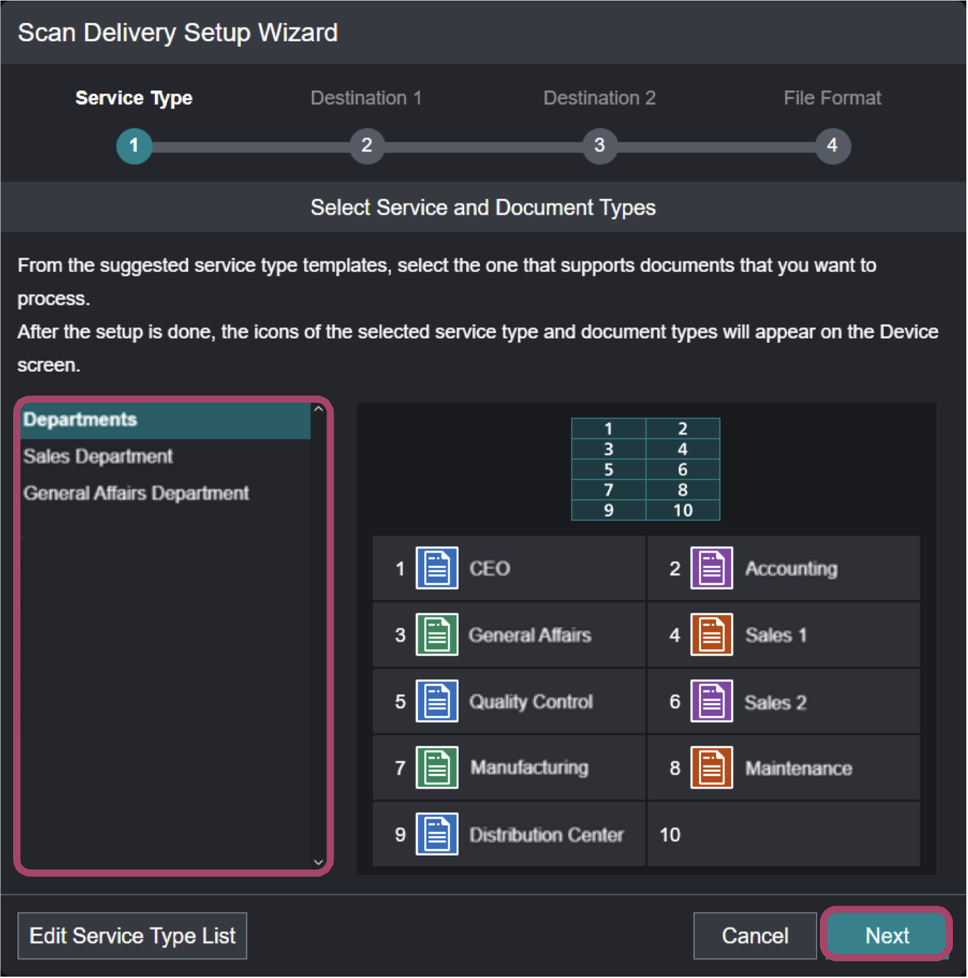
The recommended service types are available to select in the setup wizard. Select one that is similar to the type of document you will be handling from Three types of the recommended service such as "Departments", "Sales Departments" and "General Affairs Departments".
You can register, edit, and delete the information of the document types based on the template, so you can customize them along with business operations.
The number of service types that can be set is eight at the maximum, also the number of document types that can be set is ten at the maximum for every service type.